


Who this is for
You close the books — bookkeeper, accountant, finance person at month-end — and your day is spent matching a document to a line.
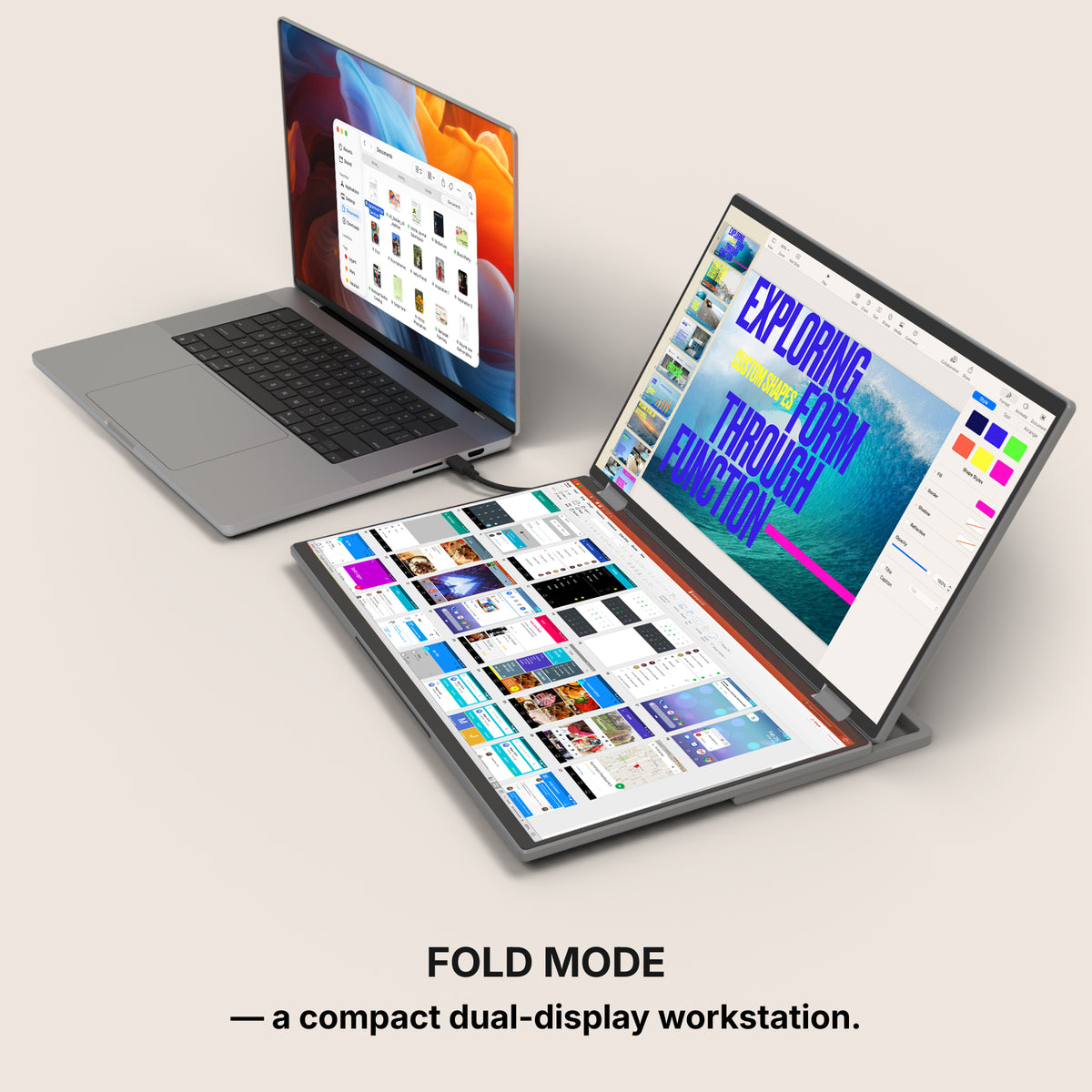
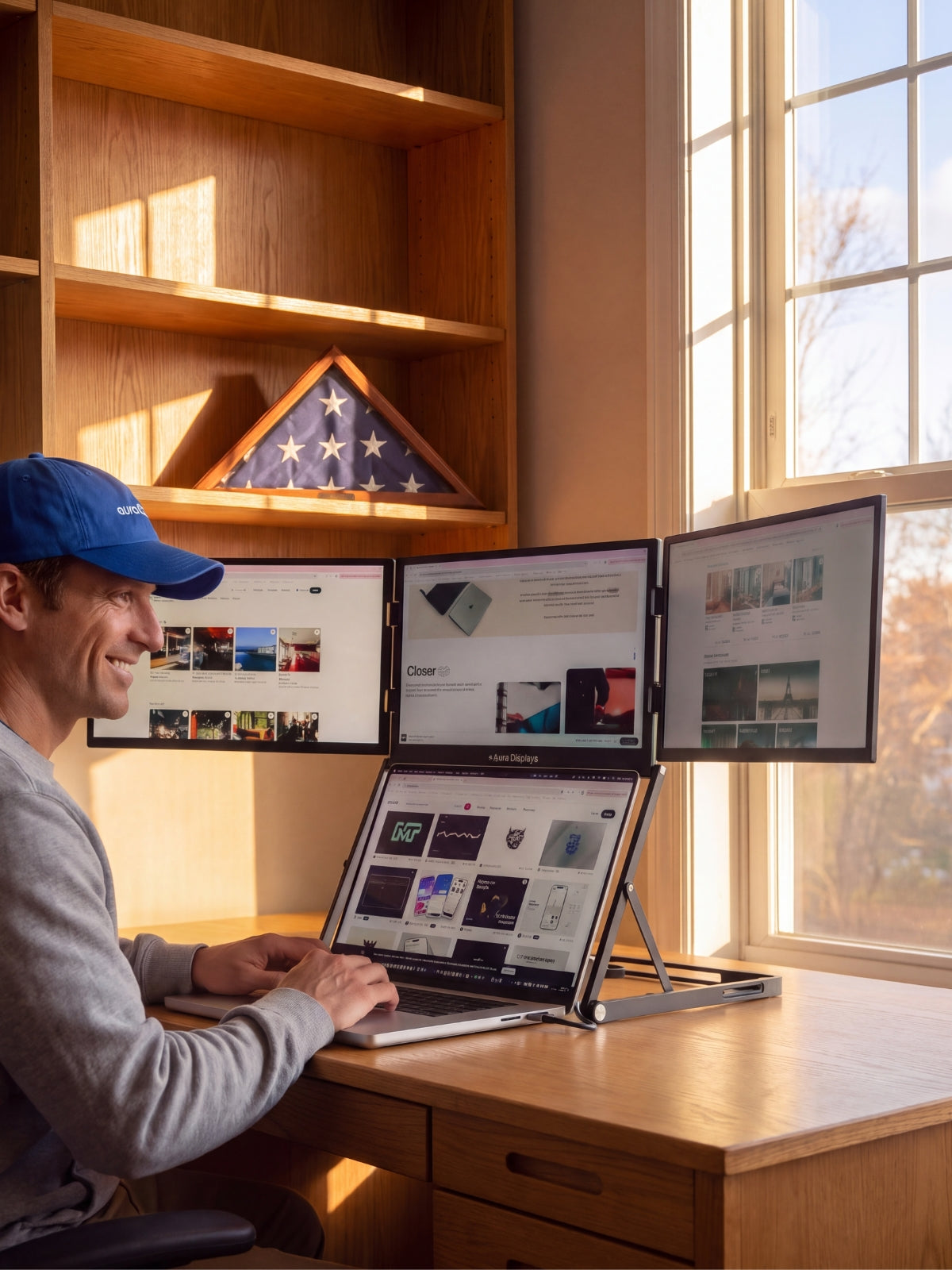
What goes on each screen
- The main panel: the ledger, full height. The register, the transaction list, the account you are working through. Height matters here, not width: this is the screen where you want rows, and nothing else belongs on it.
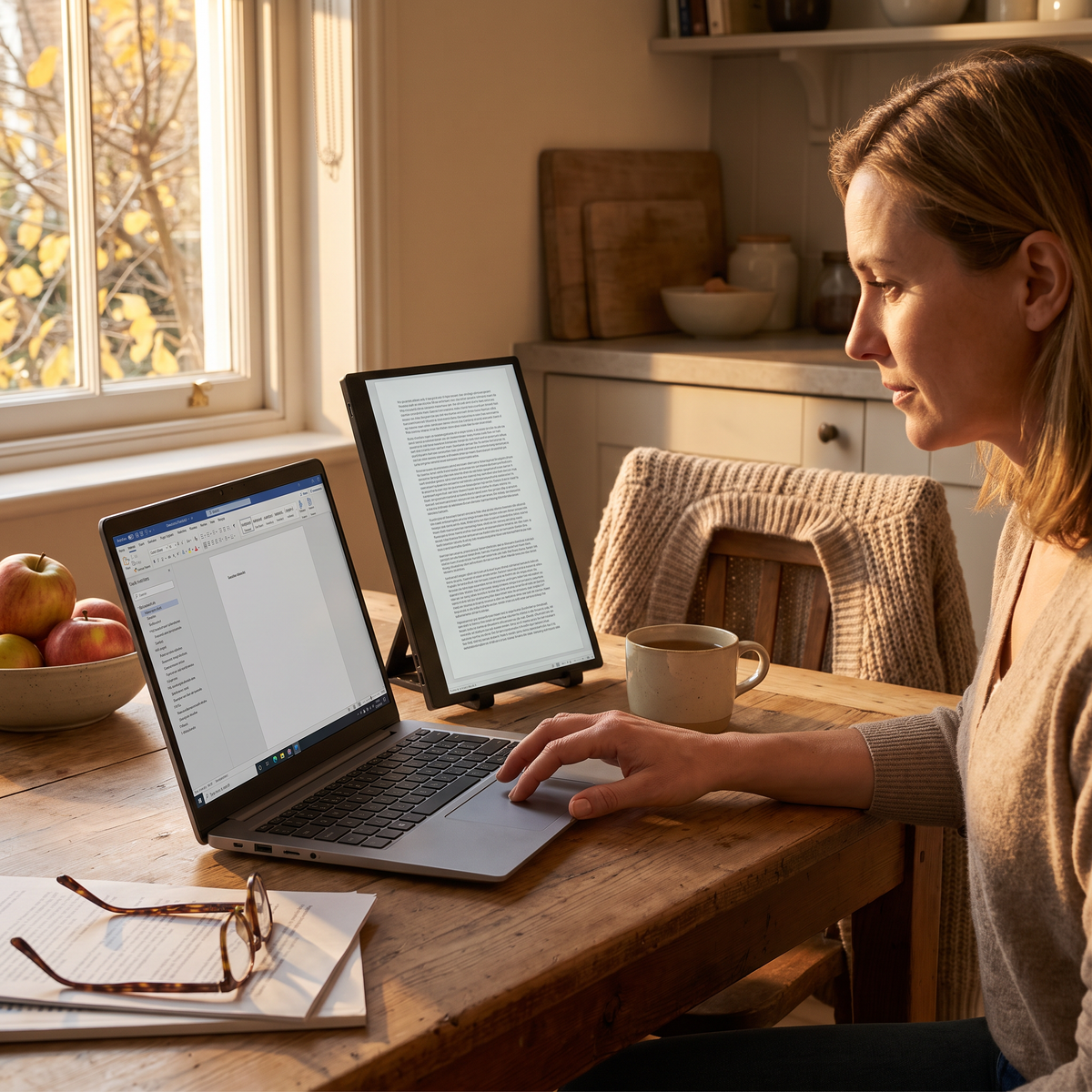
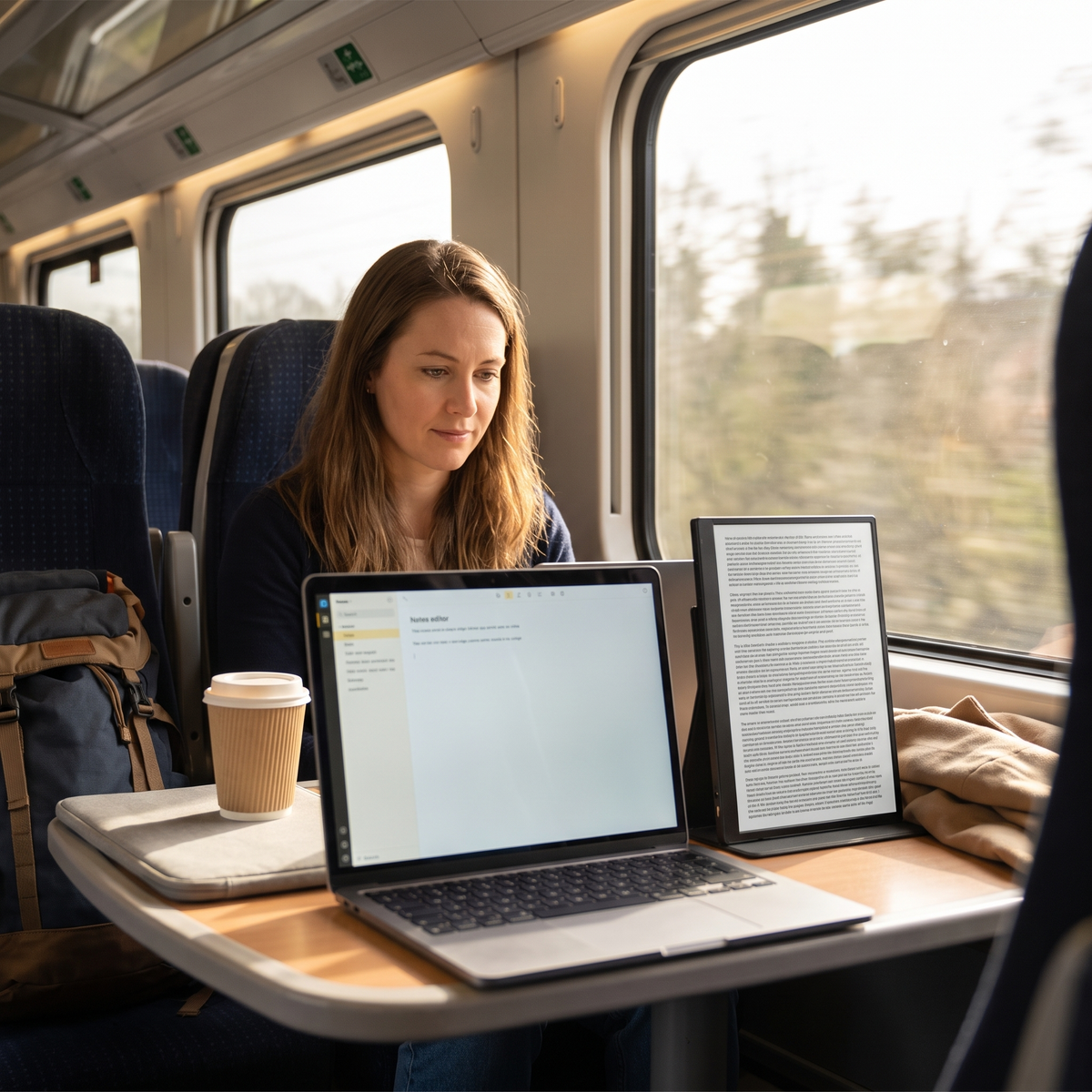
- The second panel: one source document at a time. The invoice, the bank statement, the receipt — one page, as tall as the panel will show it. Not a folder of them: the one you are matching right now.
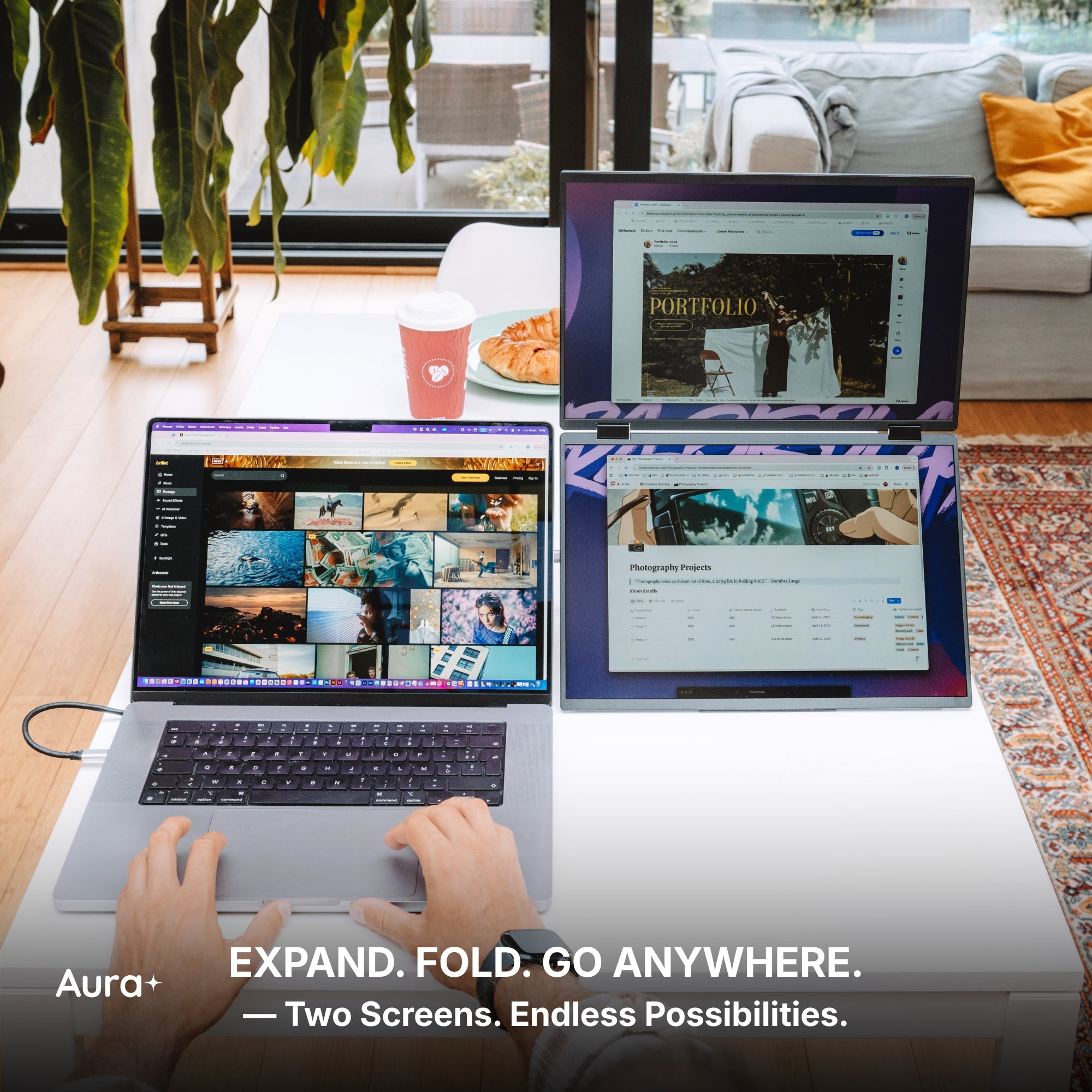
- The laptop: the working spreadsheet. The reconciliation workbook, the schedule you are building, the queries for the client. It sits low and close, and you type in it more than you read it.
- Keep the document and the destination next to each other, not diagonally opposite. If the invoice is on the left panel and the cell you type into is on the right, your eye crosses two screens for every line — and that is where figures land in the wrong row.
- The failure mode is predictable. People put the spreadsheet on the big panel because it feels like the work, then read a scanned invoice in a quarter of a screen.
The software settings that make it usable
- Excel: two windows onto the same workbook. View > New Window opens a second window of the file already open; View > Arrange All places them. Put one on the panel and one on the laptop: read the summary sheet while typing in the detail sheet.
- Excel: compare two periods properly. View > View Side by Side, and leave Synchronous Scrolling on. Two months of the same account then scroll together instead of drifting a row apart — the most useful thing on this list.
- Excel: View > Freeze Panes before anything else. A column header you cannot see is behind most mis-keyed lines, and it costs one click.
- Acrobat: Window > Tile > Vertically for two PDFs side by side, and View > Rotate View for a statement scanned sideways. That rotates the view, not the hardware — see the next section.
- Browser-based ledgers need a window, not a tab. QuickBooks Online and Xero run in the browser, and a tab is no use on a second screen: open a second browser window and drag it across. QuickBooks Desktop has a real multi-monitor mode under View; the online versions have none.
- Set the main display deliberately. Windows 11: Settings > System > Display, select the ledger panel, tick Make this my main display. macOS: System Settings > Displays > Arrange, drag the white menu-bar strip onto it. It decides where a PDF opens when you double-click it.
What these screens will not do for you
A second screen does not reduce entry errors. It reduces window switching. Reconciliation is matching, and the mistake you actually make is putting the right figure on the wrong line. What catches that is a control total that has to agree, not another panel.
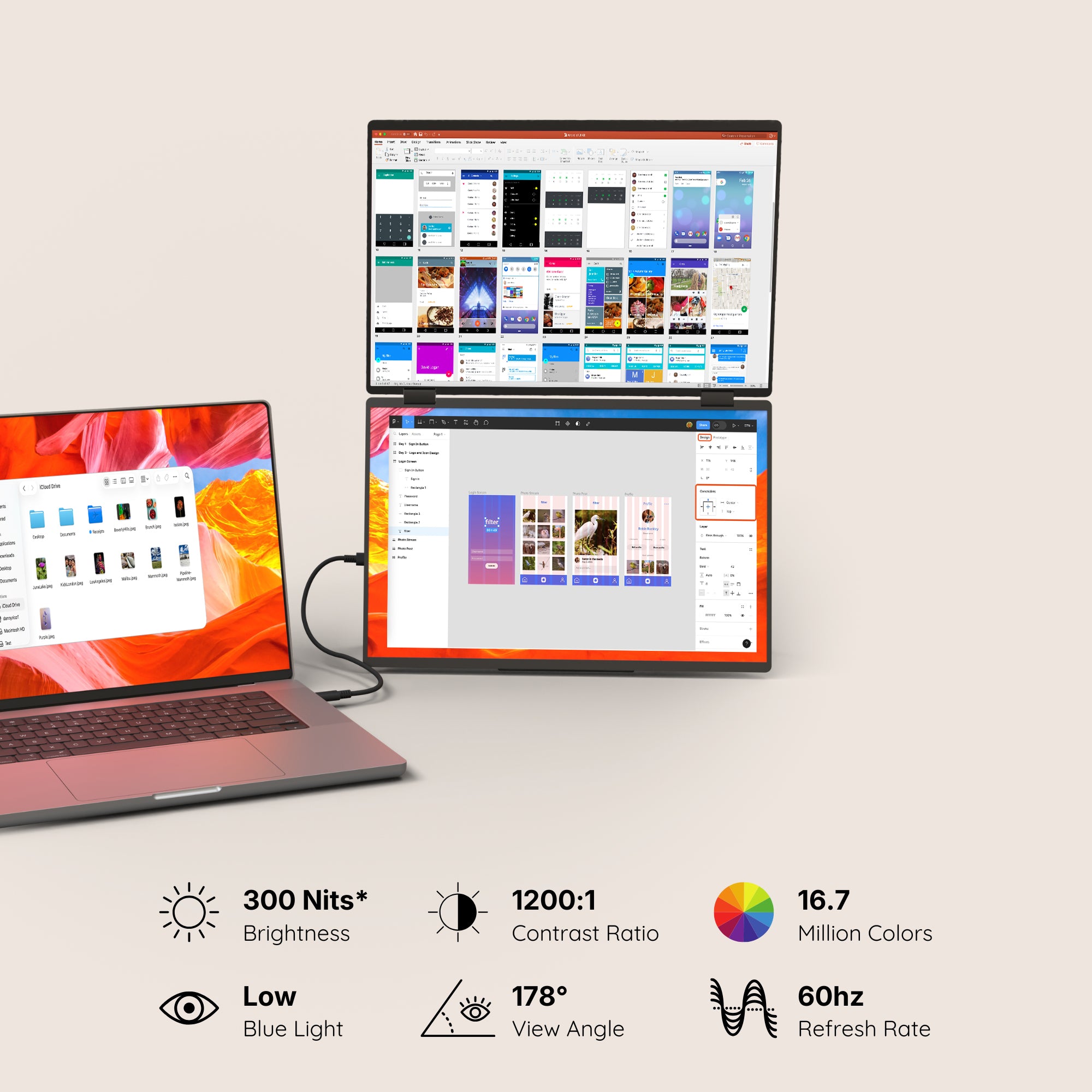
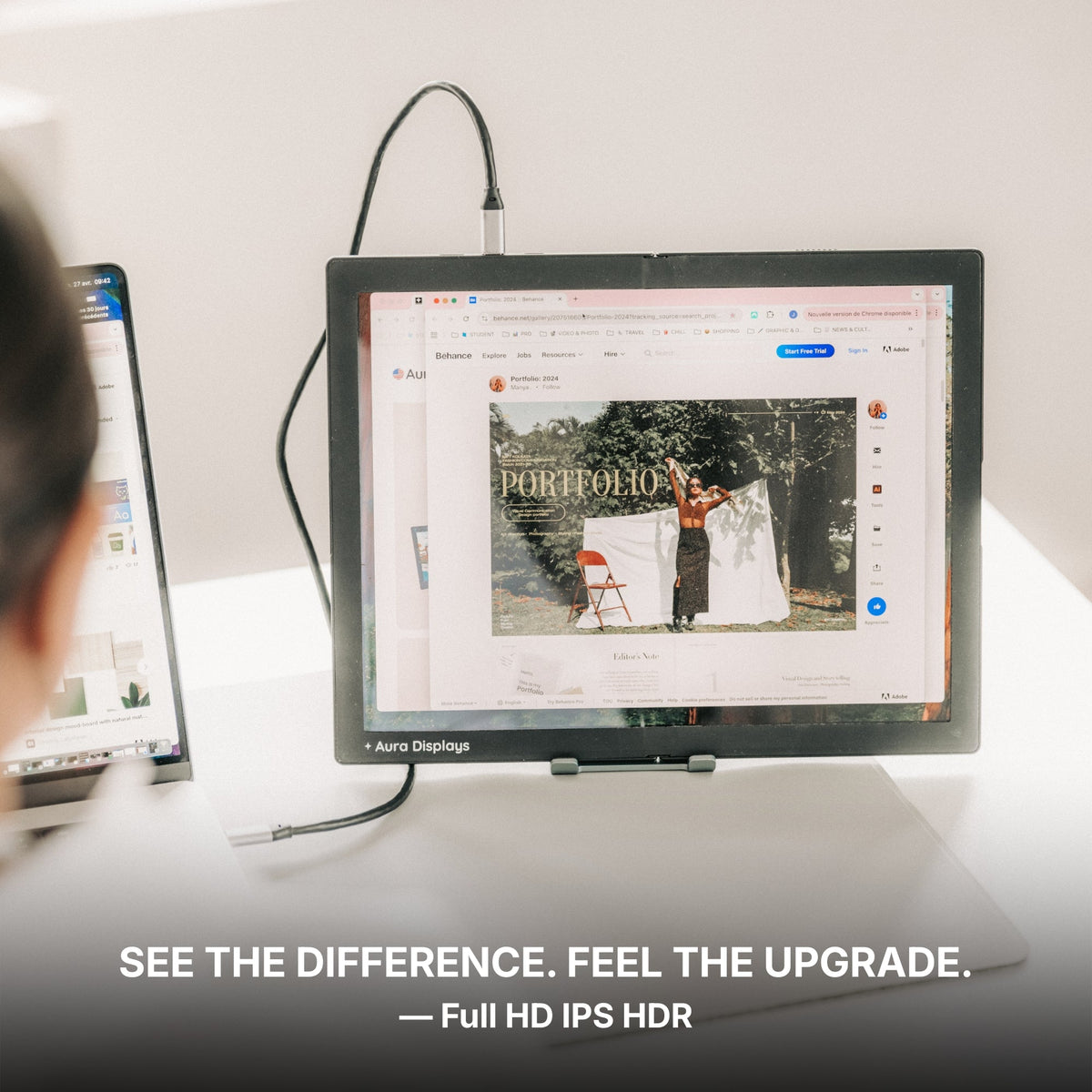
You are buying rows, and ours are modest. Our panels are Full HD or 1920 x 1200. At a readable scale a 15.6" Full HD panel shows a sensible number of spreadsheet rows, not a huge one. If you need sixty rows at a glance, a large desk monitor does that and a portable panel does not.
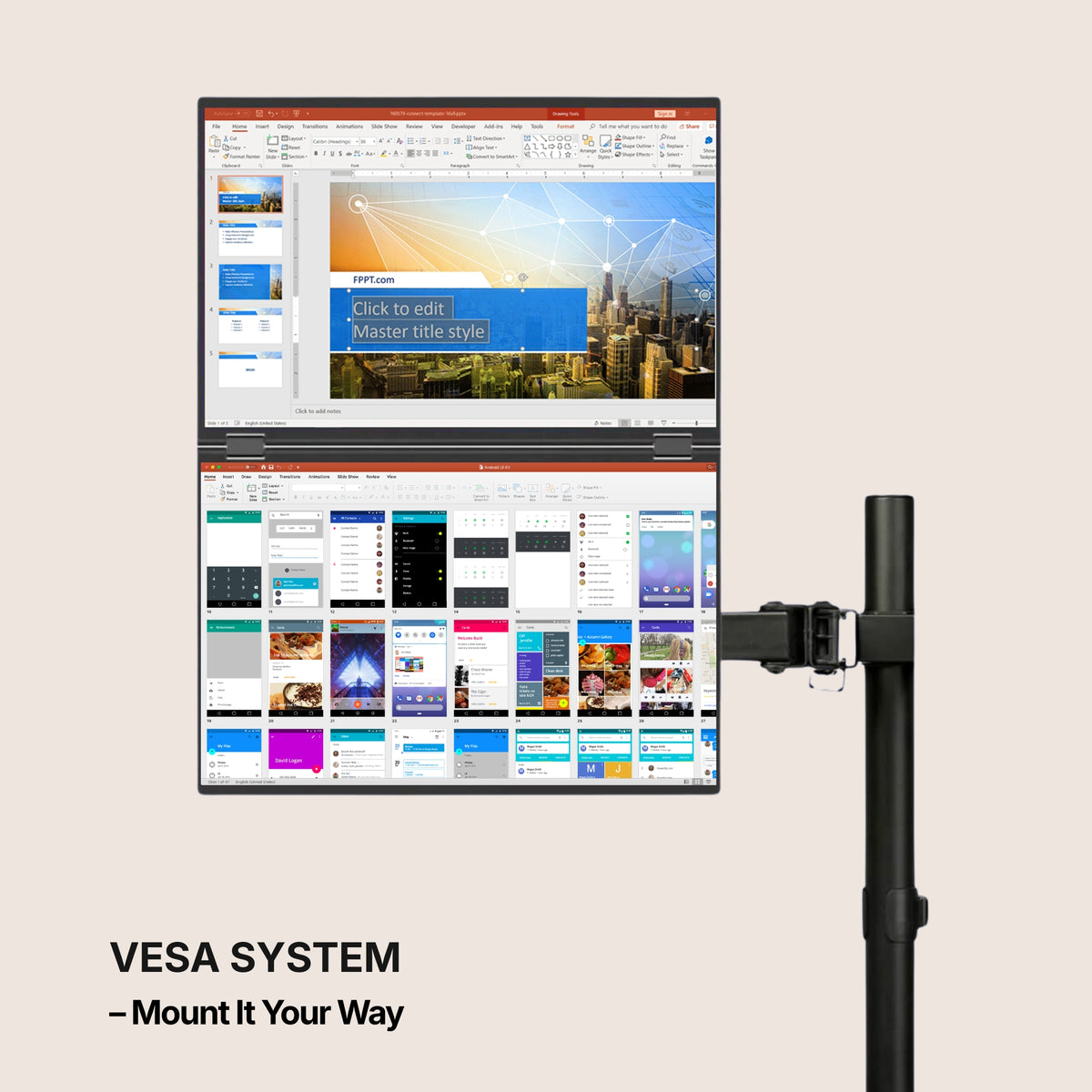
Do not plan on standing a panel on its side. A document page is taller than it is wide, so the thought is natural — but we publish no mounting orientation and no viewing angle for these panels. Rotate the view in the application instead.
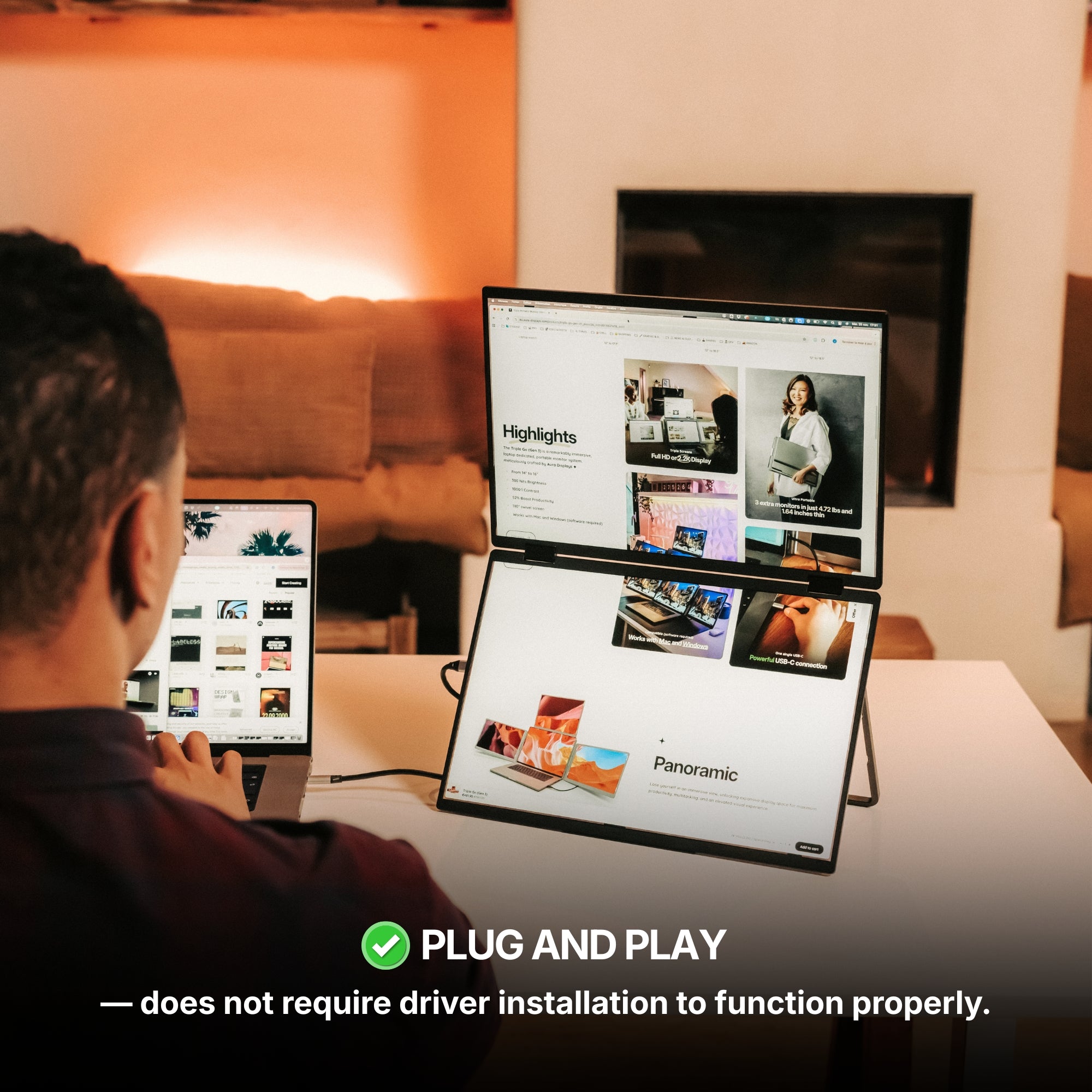
The driver matters at close. Our Boost and Triple ranges read Software required under Filter: Driver, so a display driver is running while a large workbook recalculates. It is why the recommendation below is plug and play.
Colour, as ever. No product page in our catalogue declares a colour gamut and our panels sit between 280 and 320 nits — fine for a ledger and a PDF, not a surface for judging how an invoice template will print.
The setup we recommend, and the cheaper one
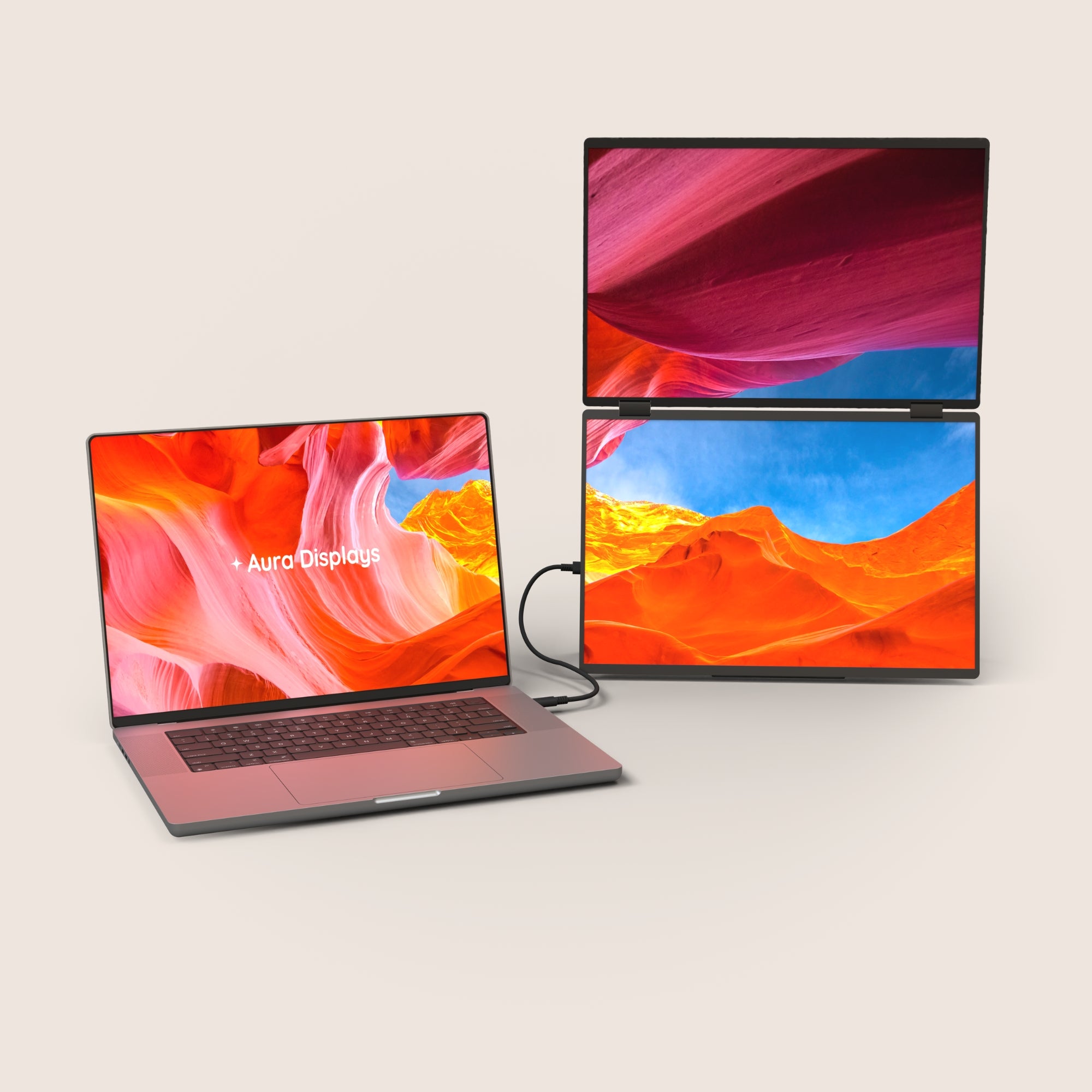
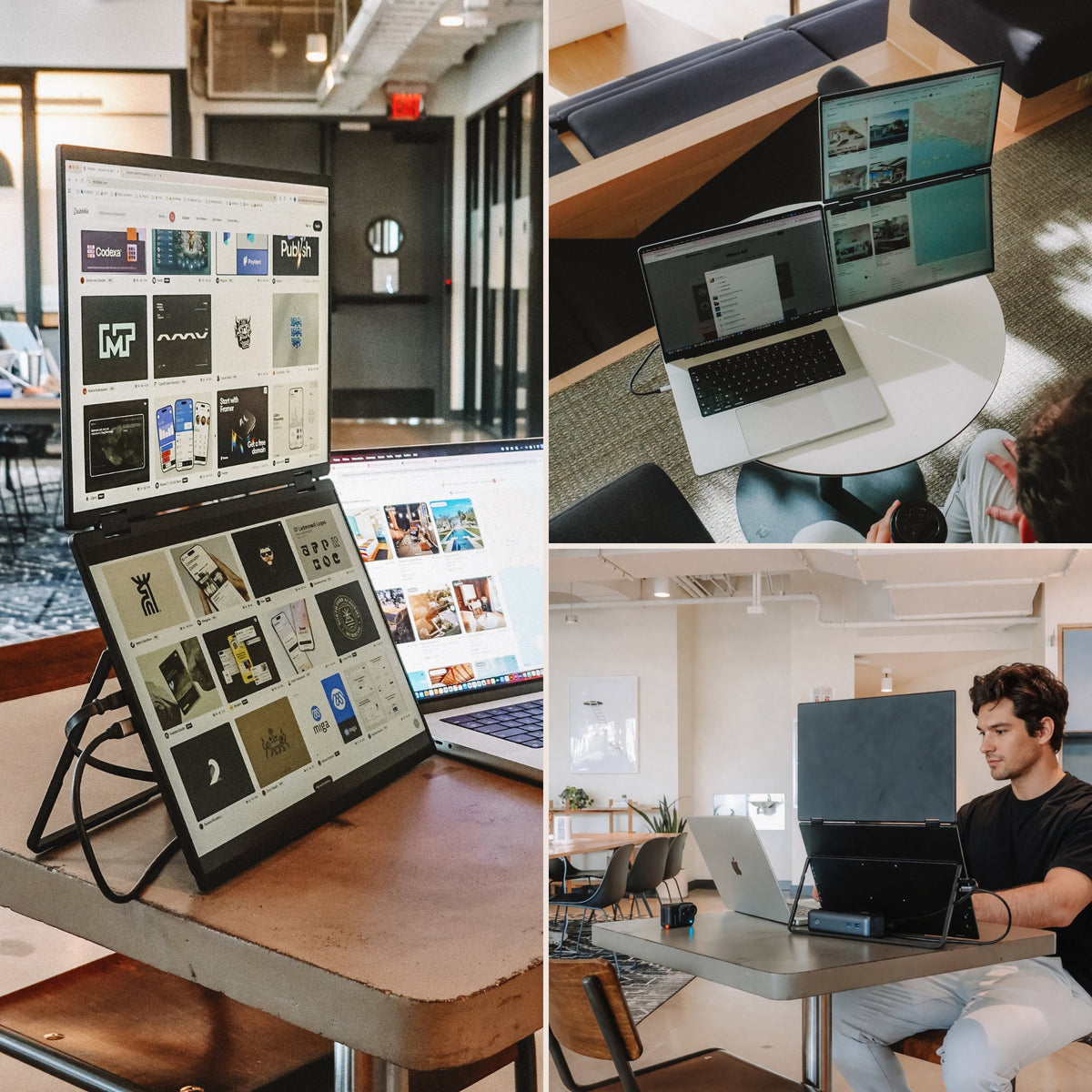
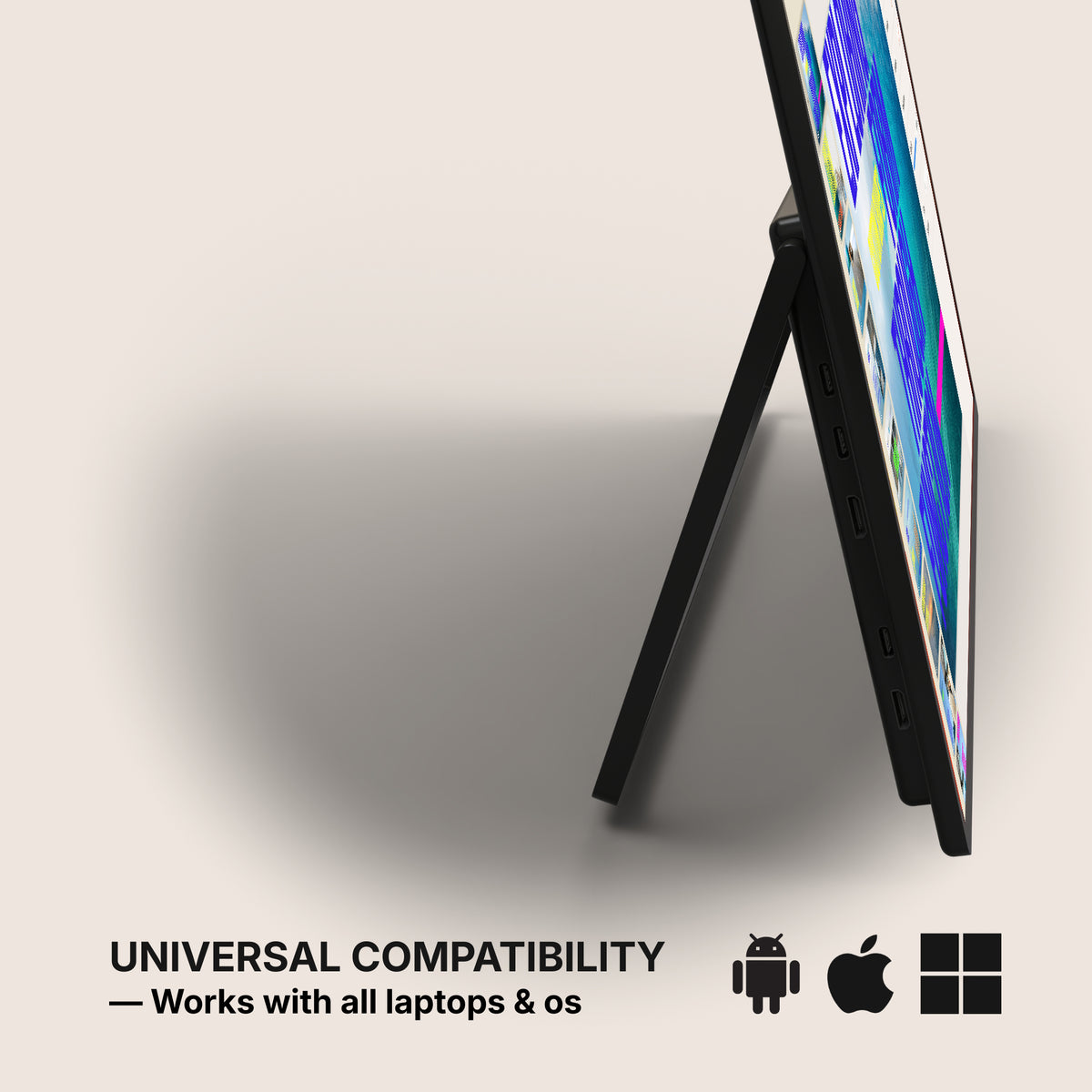
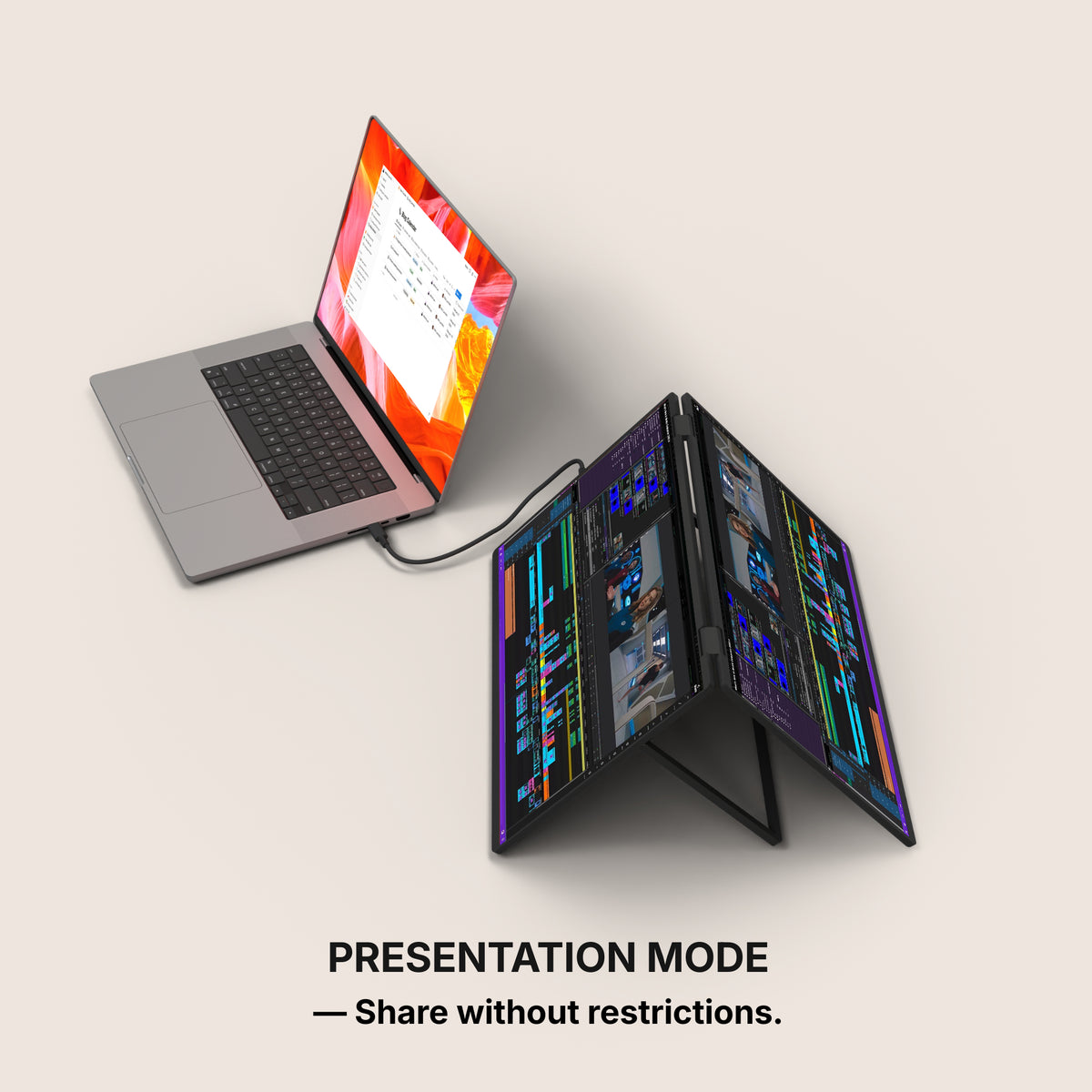
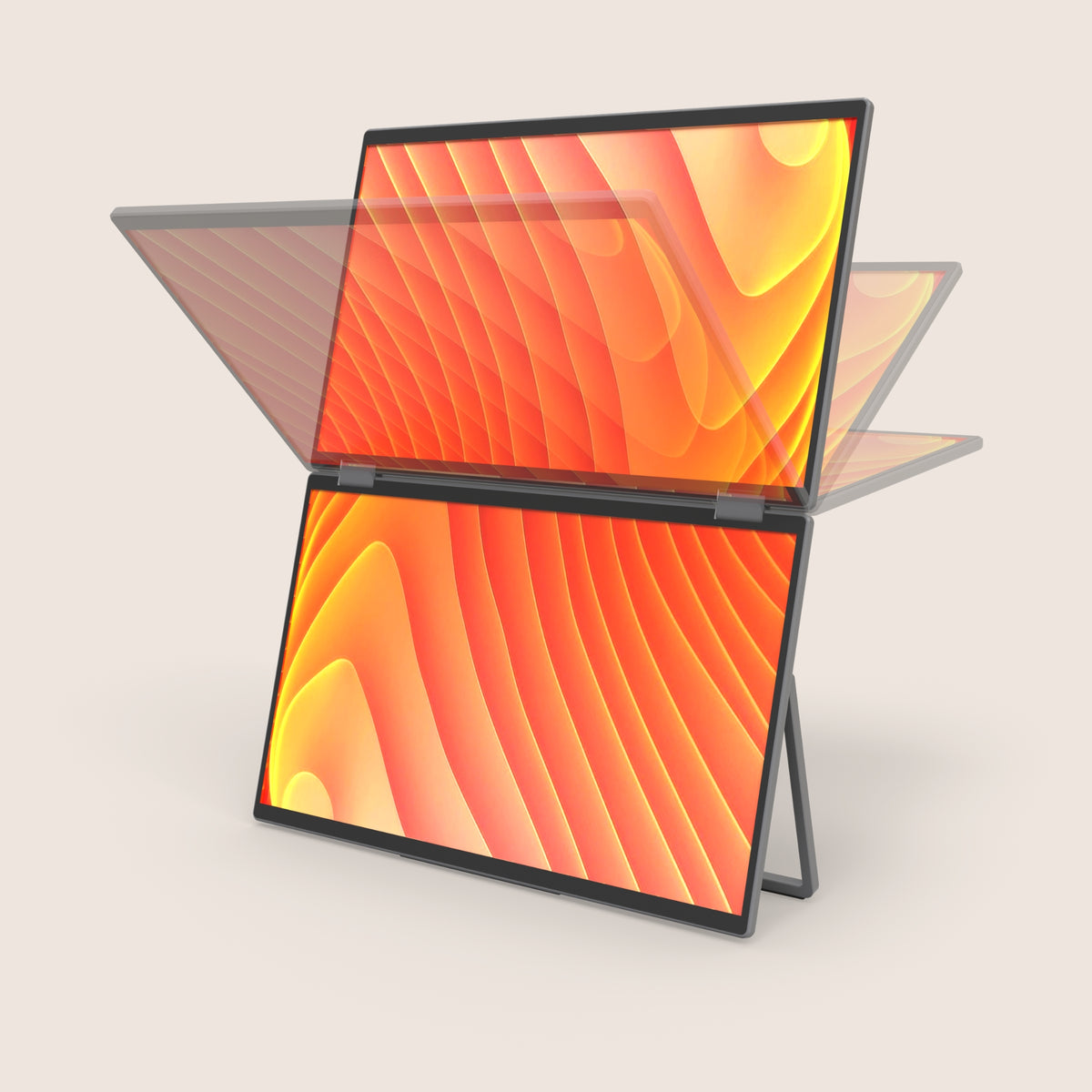
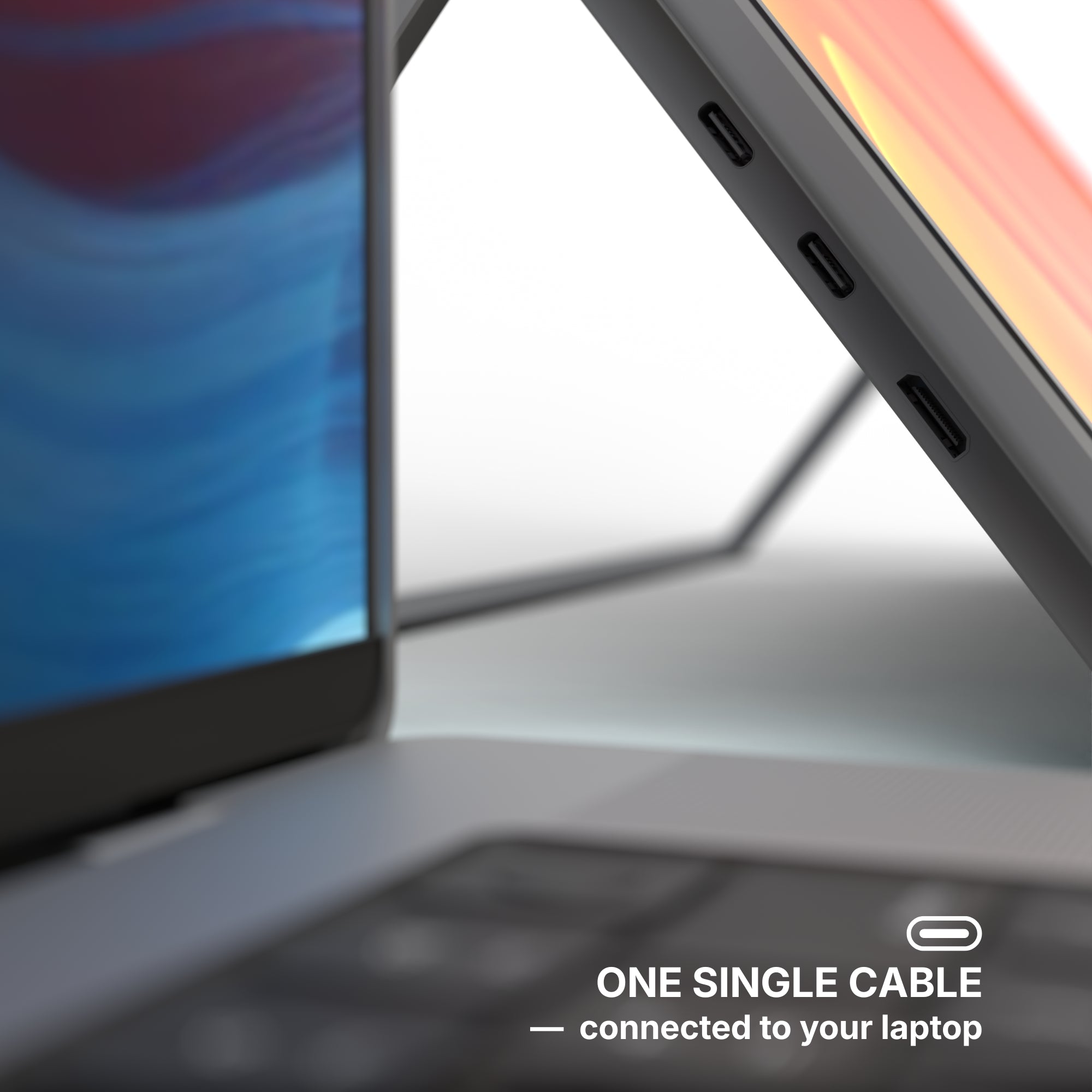
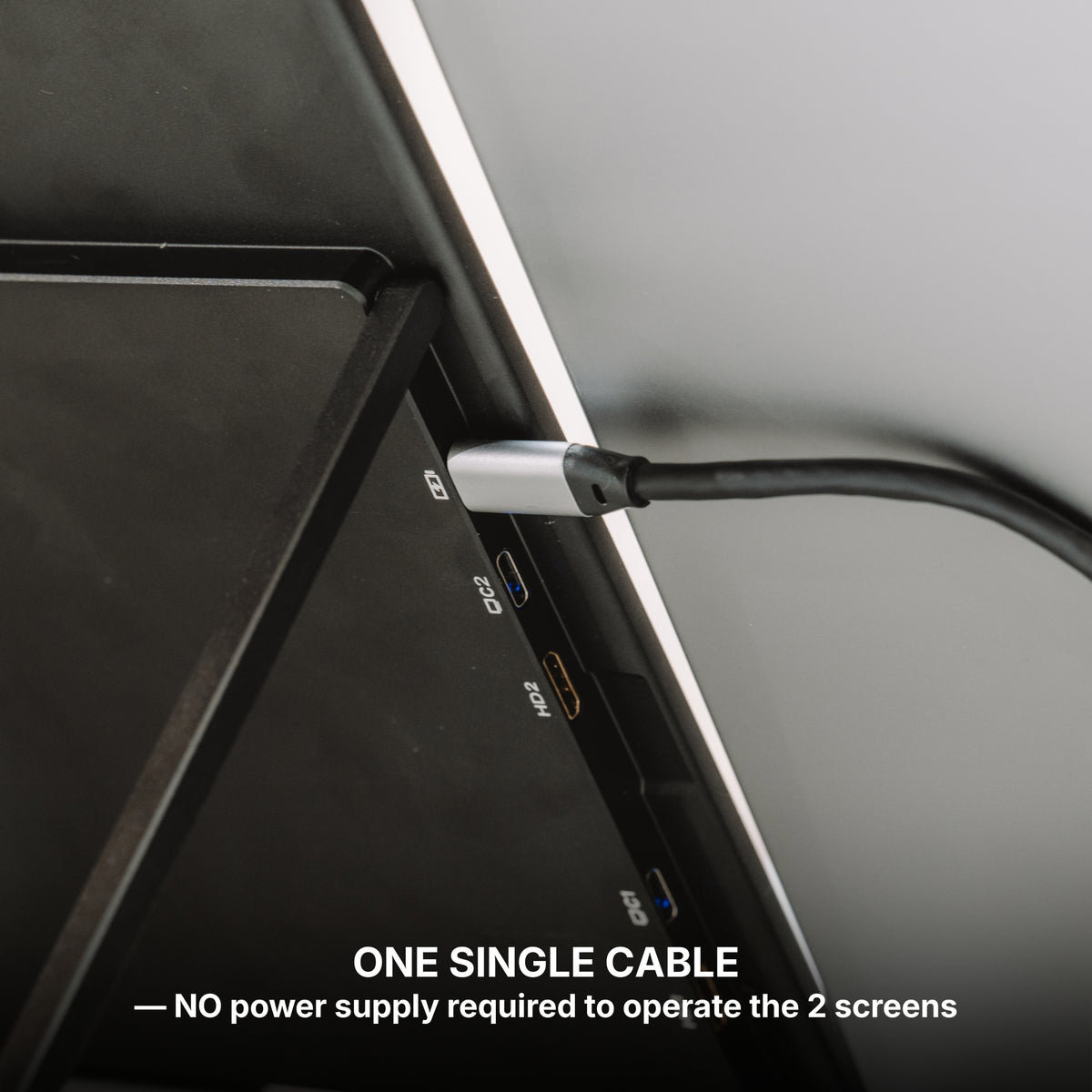
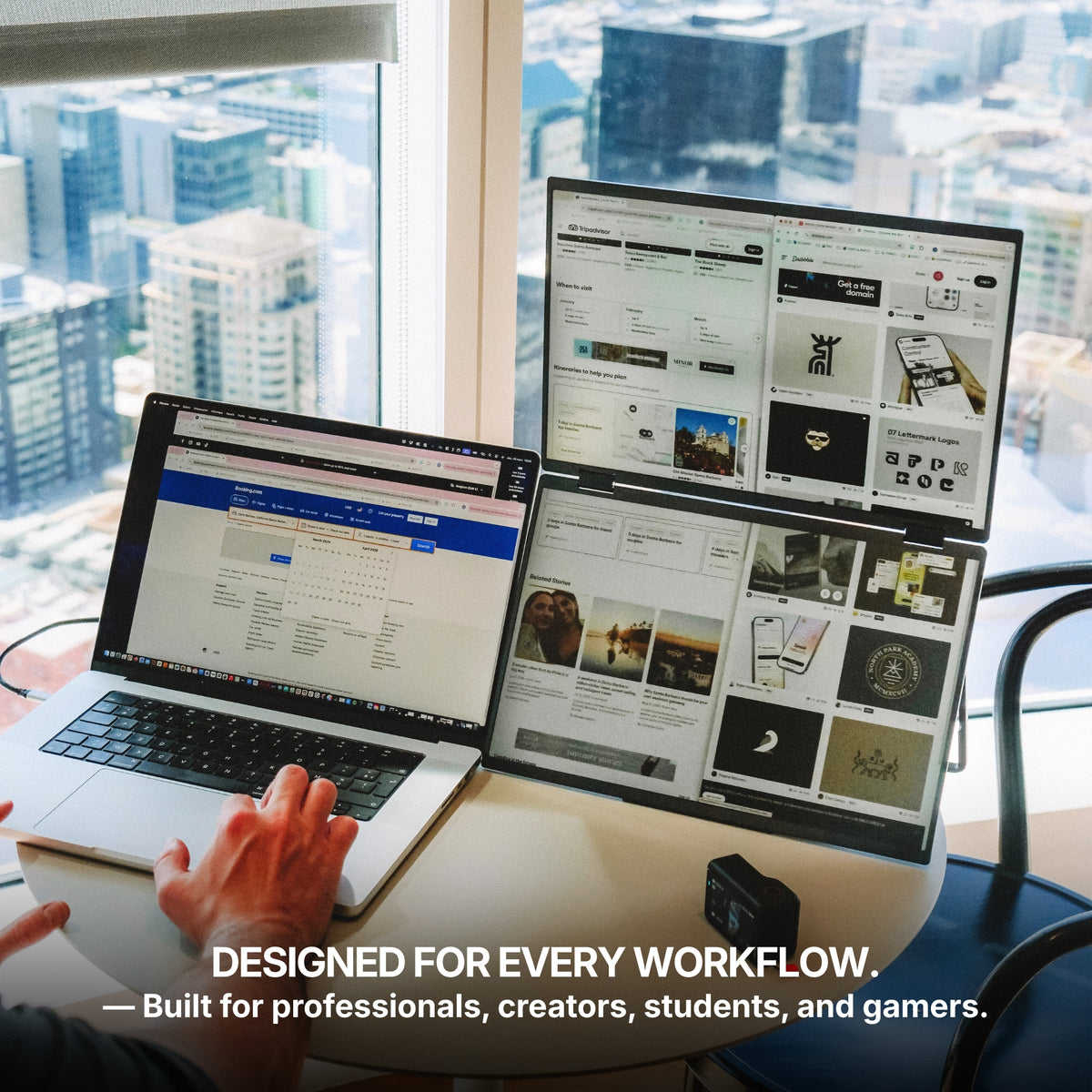
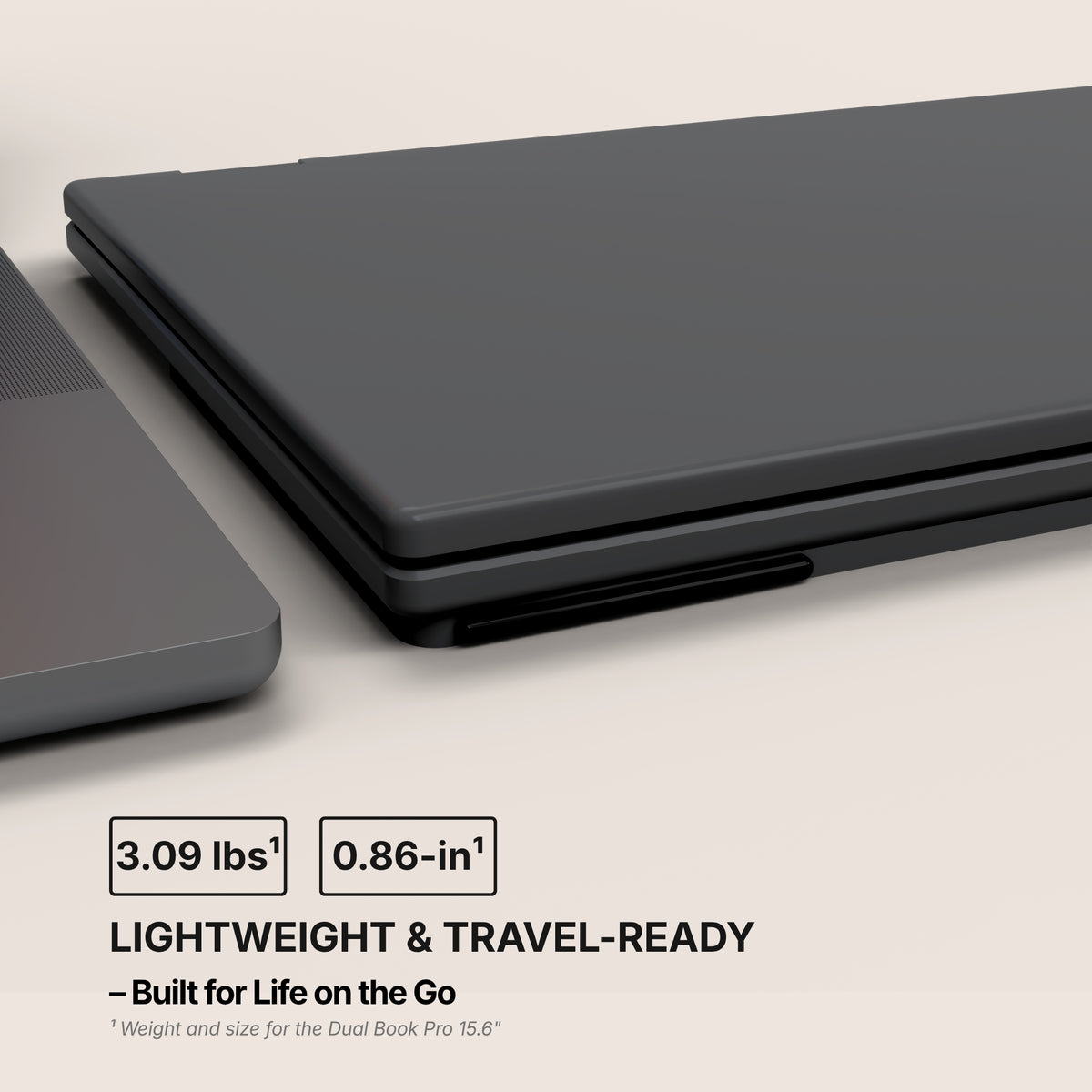
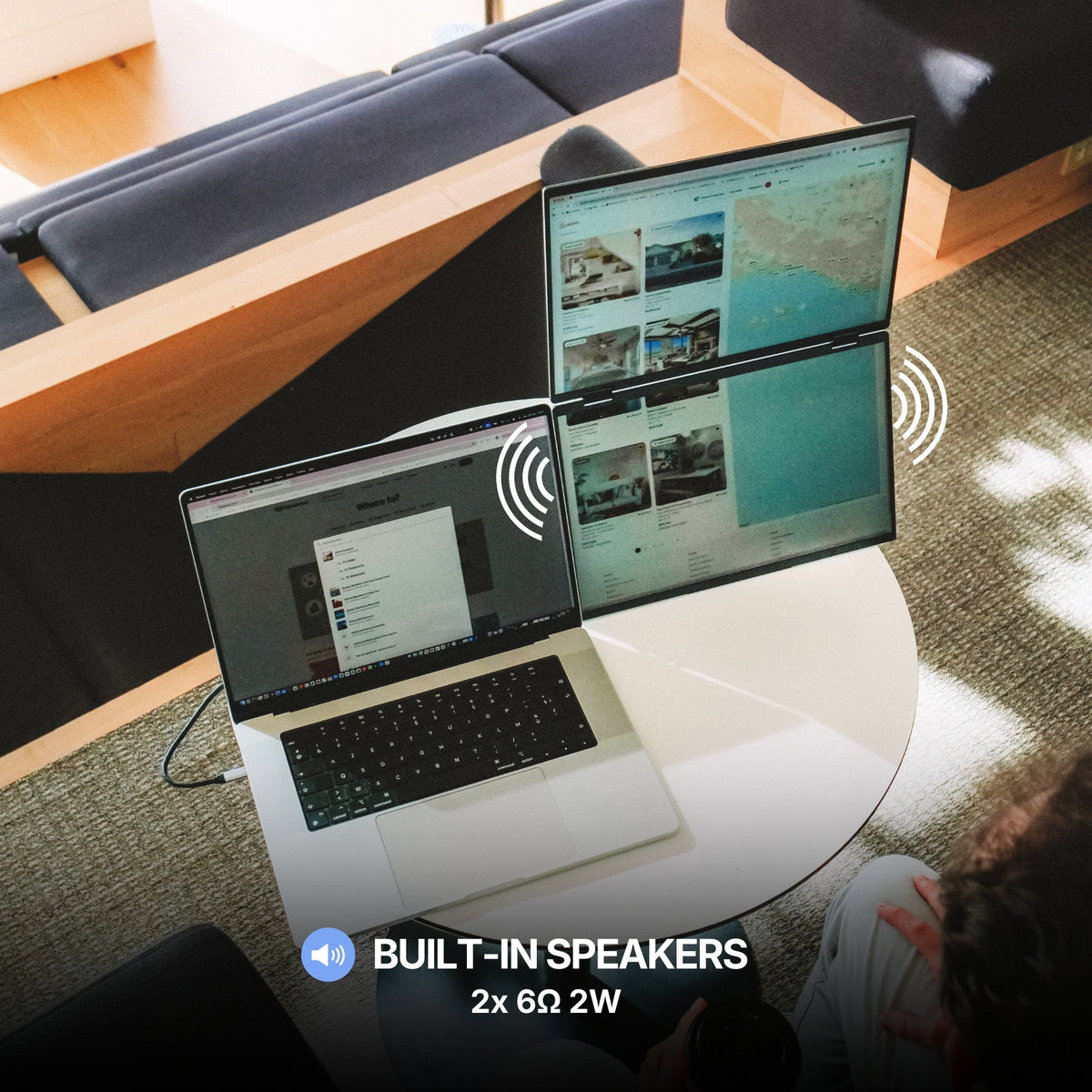
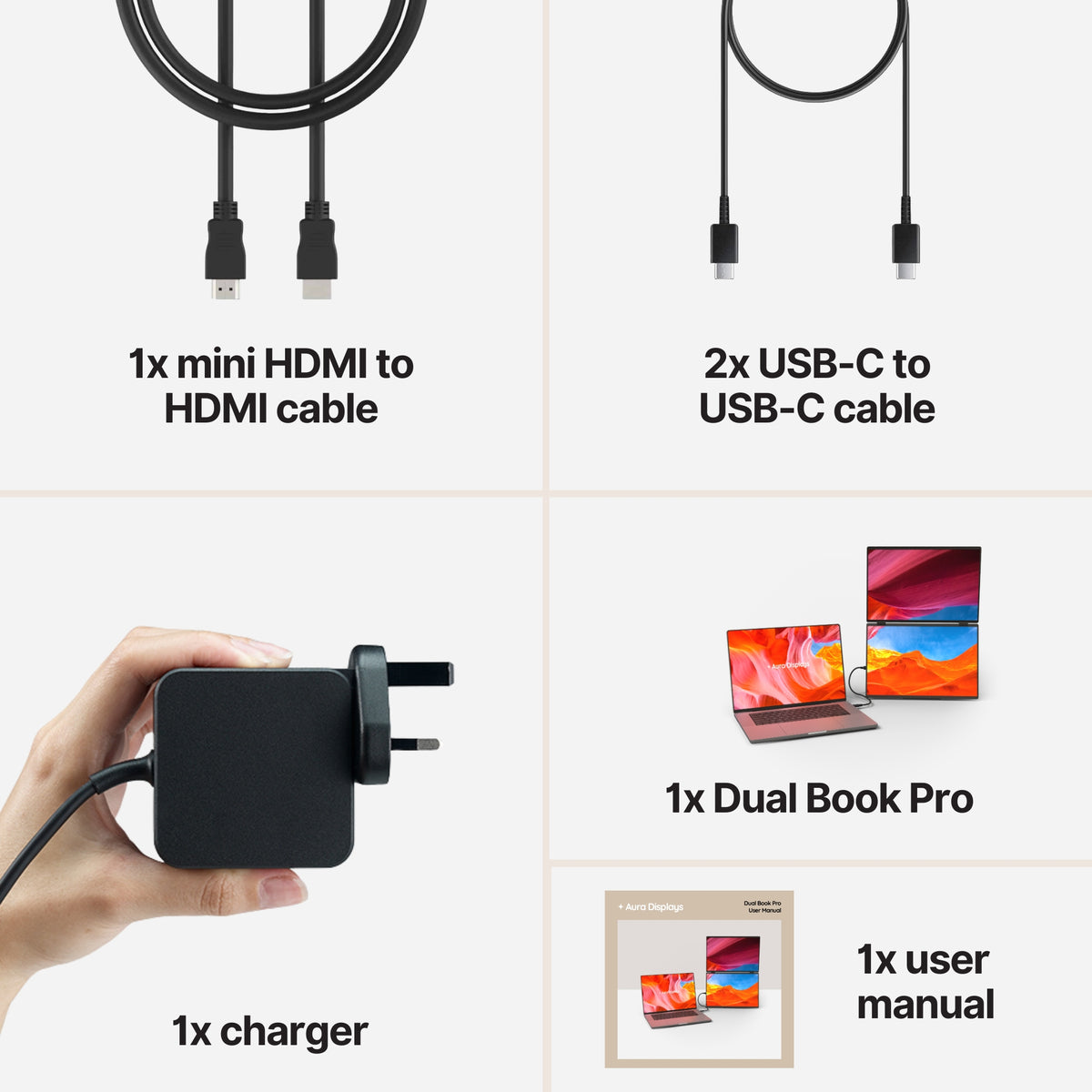
Our recommendation: Dual Book Pro (Gen 2), from $389. Two attachable panels, plug and play with no driver, in 15.6" and 16", Full HD or 1920 x 1200, with 3x USB-C, 2x mini HDMI and a 3.5 mm jack. Take the 16" Plus at 1920 x 1200: those extra 120 lines of pixels are rows, and rows are why you are reading this. Rated 4.63 out of 5 across 154 reviews.
The cheaper option: Single Play (Gen 2), from $289. One Full HD panel, plug and play, with the widest operating-system list we publish. Put the source document on it and keep the ledger on the laptop. Rated 4.78 out of 5 across 379 reviews — a higher score than our own recommendation. If you close the books four days a month rather than daily, this is the right amount of screen.
Why we are not selling you more. Triple Boost Pro (Gen 2), from $499, gives you three panels — and reads Software required, lists macOS, Windows, Android and Ubuntu only, and is Full HD across the range. That is three modest surfaces rather than one tall one, and with the laptop the layout above already has three. Spend the difference on the scanner.
















Share: