


Every portable screen on this site falls into one of two camps, and the split has nothing to do with price, size or how many panels you get. One camp plugs in and works. The other needs a piece of software running on your machine. Which camp you need is decided by your laptop, not by your budget — and it is worth ten minutes of checking before you spend anything.
What the software actually does
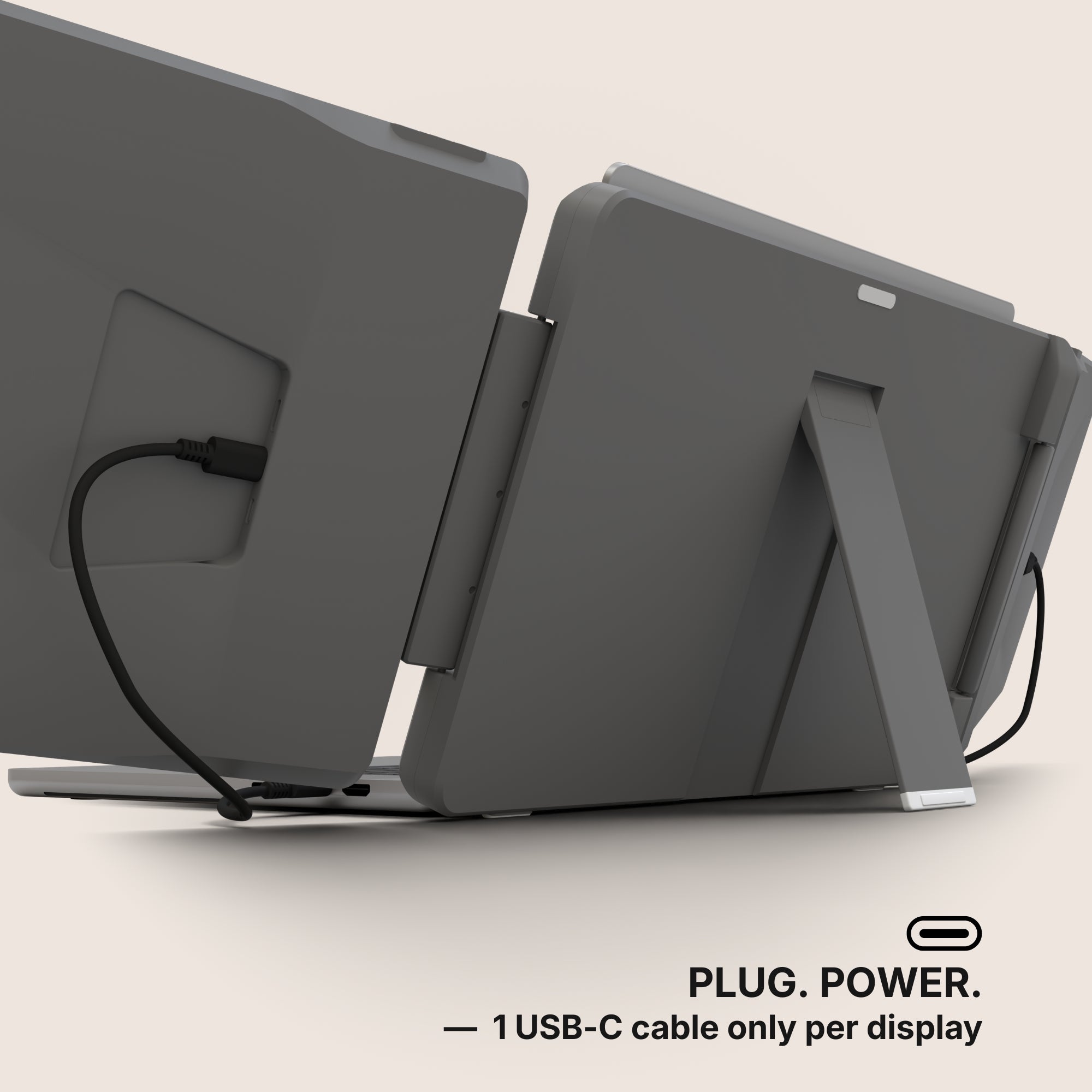
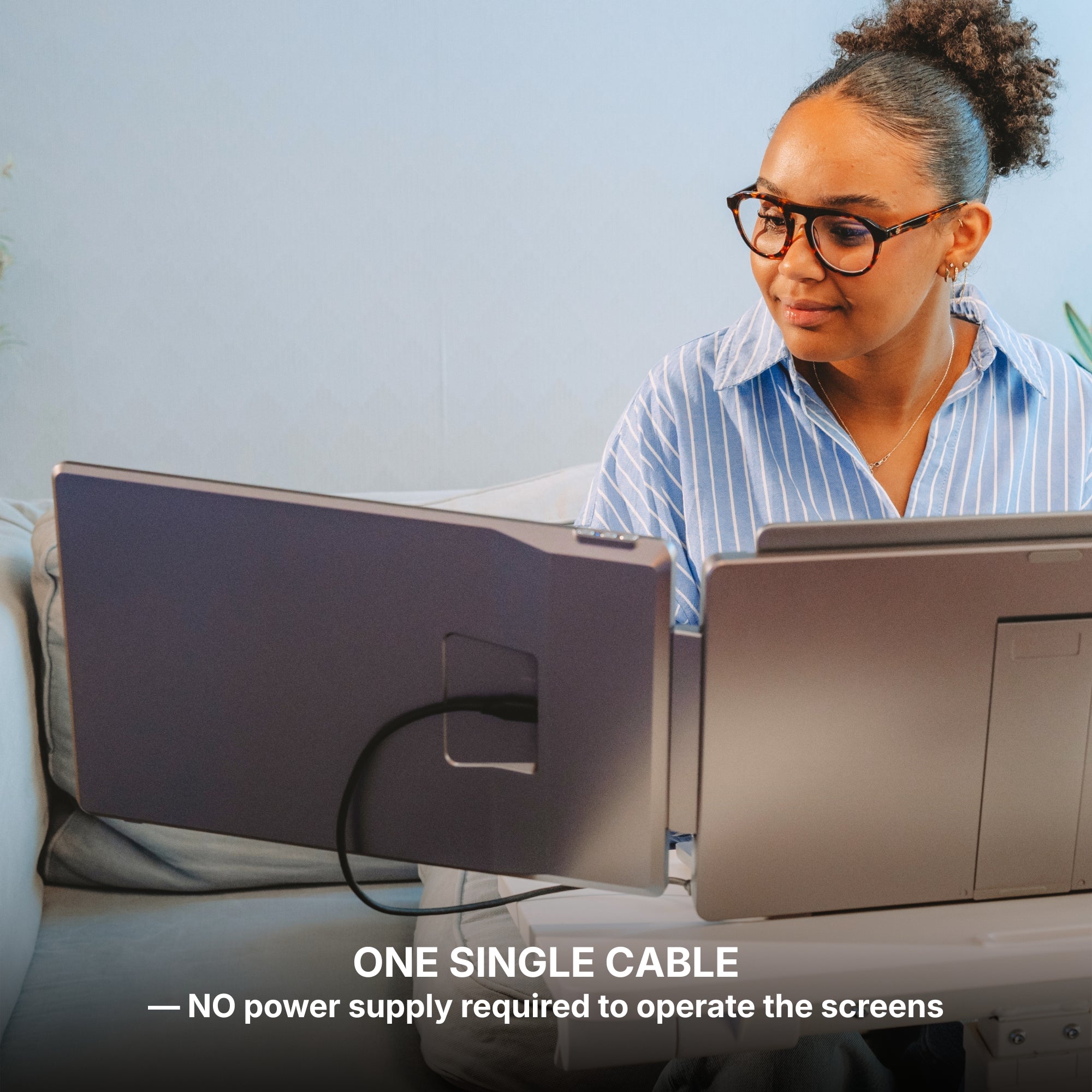
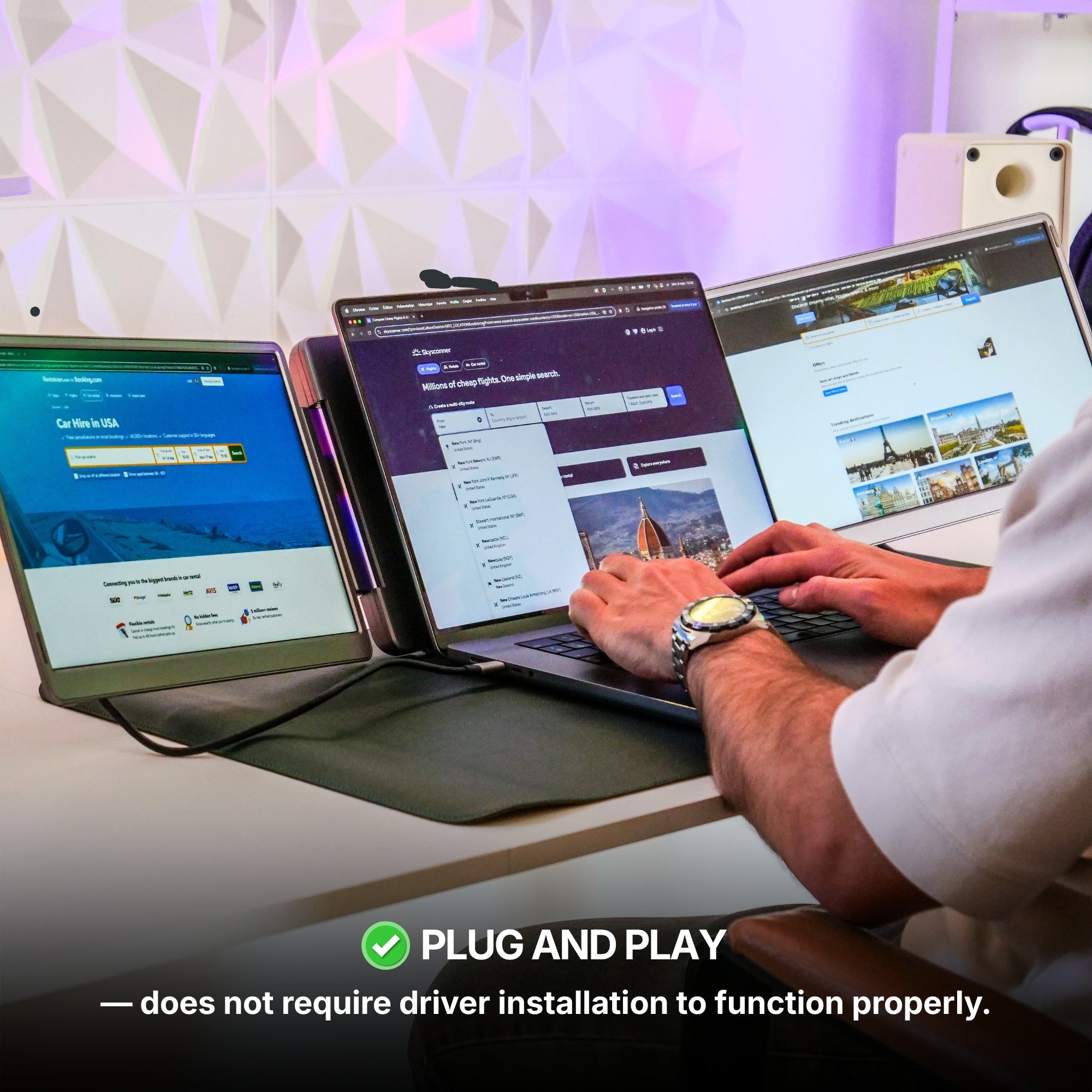
A plug-and-play panel is seen by your computer the way any external monitor is seen: the USB-C port carries a video signal, the display controller drives the panel, and the operating system adds a second desktop. Nothing is installed. Nothing runs in the background.
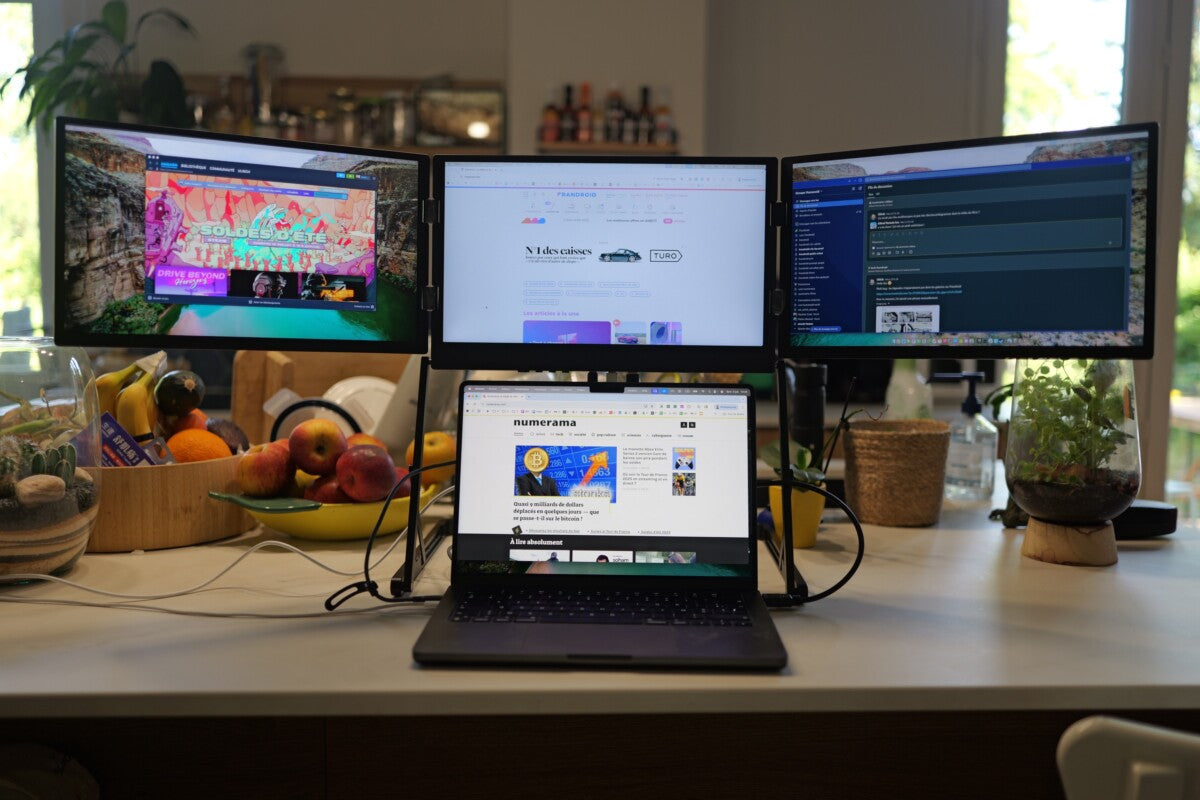
A software-driven extender works differently. Your machine composes the extra frames itself, compresses them, and pushes them down the cable as data. That is what the companion app is for. It is a legitimate design — it is how you get three panels out of a single port on a machine that would otherwise drive one — but it has two consequences. It costs processor time continuously, and it requires you to install and run an application.
That second consequence is where most disappointed orders come from.
The ten-minute check, before you buy anything
Answer these four questions about the machine you actually use.
- Can you install software without asking anyone? On a managed work laptop the answer is often no. Try installing any small free app. If it asks for credentials you do not have, or is silently blocked, a software-driven extender will be blocked too — the purchase decision is already made for you.
- What operating system is it? On macOS: Apple menu → System Settings → General → About. On Windows: Settings → System → About. If the answer is ChromeOS or a Linux distribution, plug and play is the only route: there is no companion app to install.
- Does the port carry video at all? Not every USB-C port does. Check your laptop's own spec page for "DisplayPort Alt Mode", "Thunderbolt", or a video symbol beside the port. A port that only carries data will not drive a panel no matter which model you buy.
- Is a game console in the picture? A console cannot install anything. Plug and play or nothing.
If your machine is a personal Mac or Windows laptop with admin rights, both camps are open to you and you get to choose on the merits. If any of the four answers went the other way, your shortlist just got shorter — and cheaper.
What the labels on our own pages mean
Every monitor page here carries two fields worth reading before the photos. Software required versus No Software required - Plug and Play tells you which camp the model is in. The operating system list tells you what it has actually been validated against.
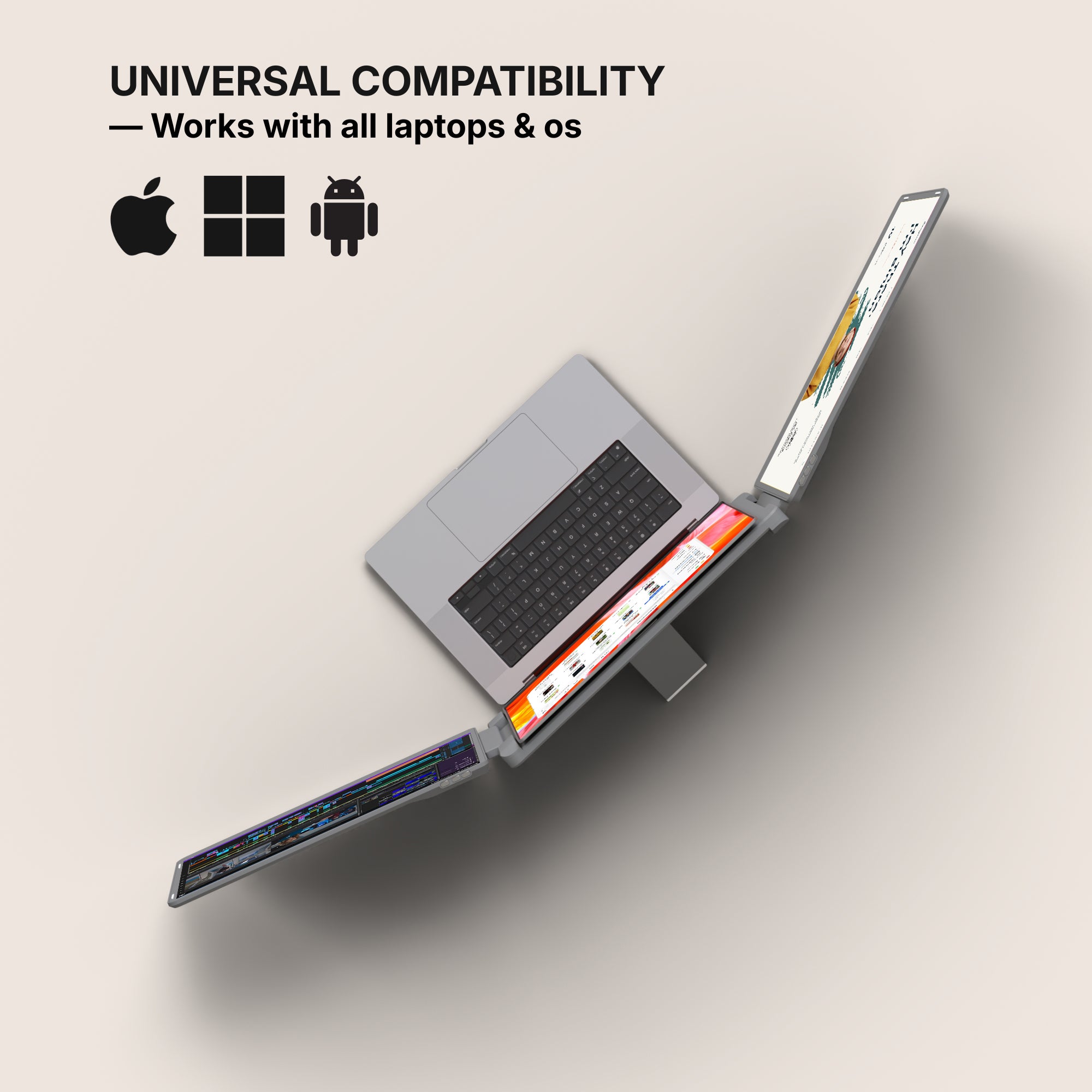
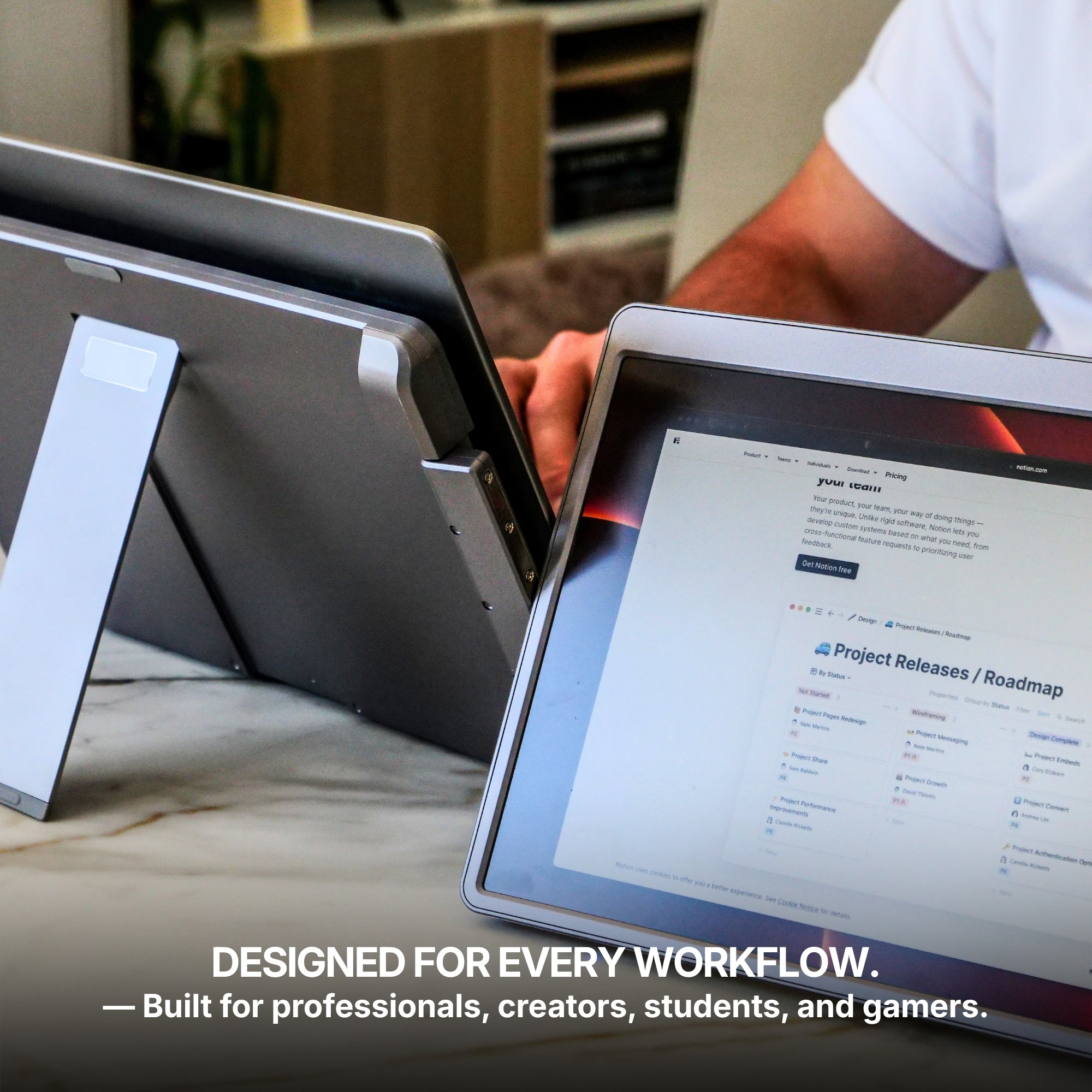
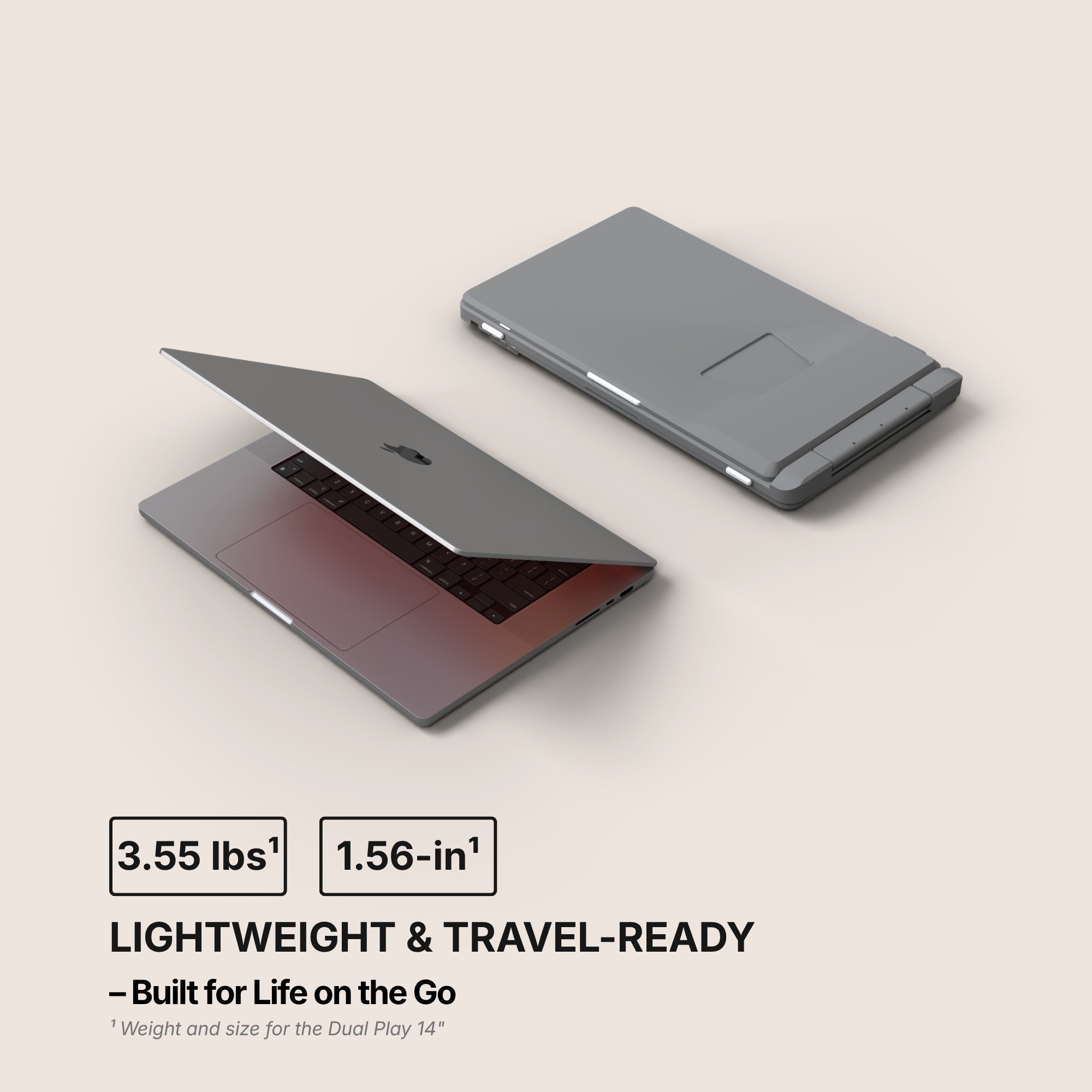
Two examples, straight off our own product pages. The Dual Play (Gen 3) is plug and play, and its compatibility list runs macOS, Windows, Android, Chromebook, Linux, Surface, game consoles, and iPhone and iPad over USB-C. The Dual Boost Pro (Gen 4) requires our software, and its list is macOS, Windows, Android and Ubuntu. Those are not marketing positions, they are what each product was tested on.
Here is the uncomfortable part, and we would rather say it than have you find out after delivery: the Dual Boost Pro is the best-reviewed monitor in our catalogue, at 4.8 out of 5 across more than a thousand reviews. It is also the wrong purchase for anyone whose laptop will not let them install an application. Ratings do not travel across that line. Compatibility comes first, and everything else second.
What plug and play will not fix
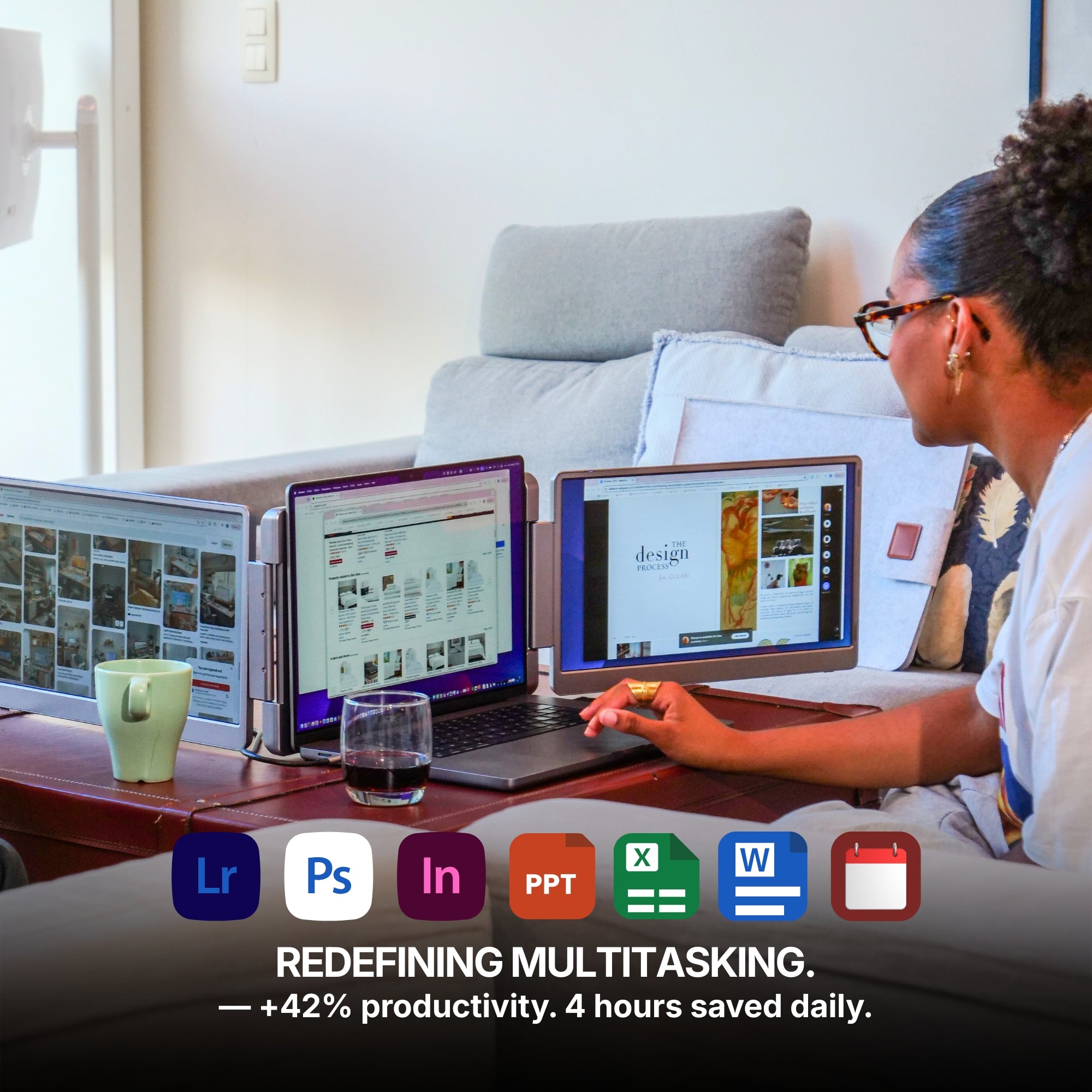
Skipping the software does not remove every constraint. Your laptop still has a maximum number of external displays it can drive, and that ceiling is set by its graphics hardware, not by what you plug into it. Some machines will happily run two extra panels; some older or entry-level ones stop at one. If you are chasing a third panel specifically, that limit is exactly the thing companion software exists to work around — which is the honest argument in favour of the software camp, not against it.
And a plug-and-play panel still draws its power from your laptop battery. No cable arrangement changes that.
What we would buy, and the cheaper version
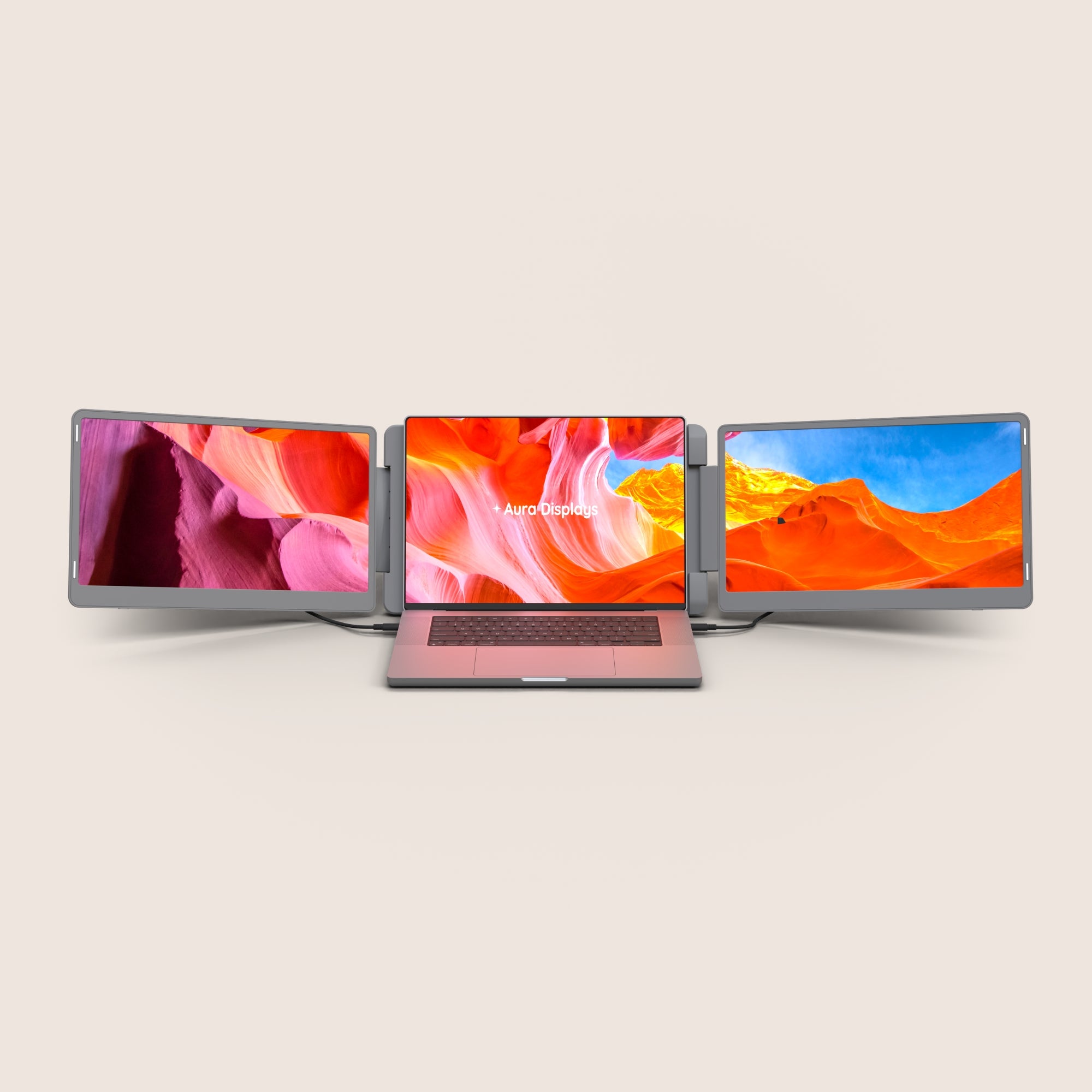
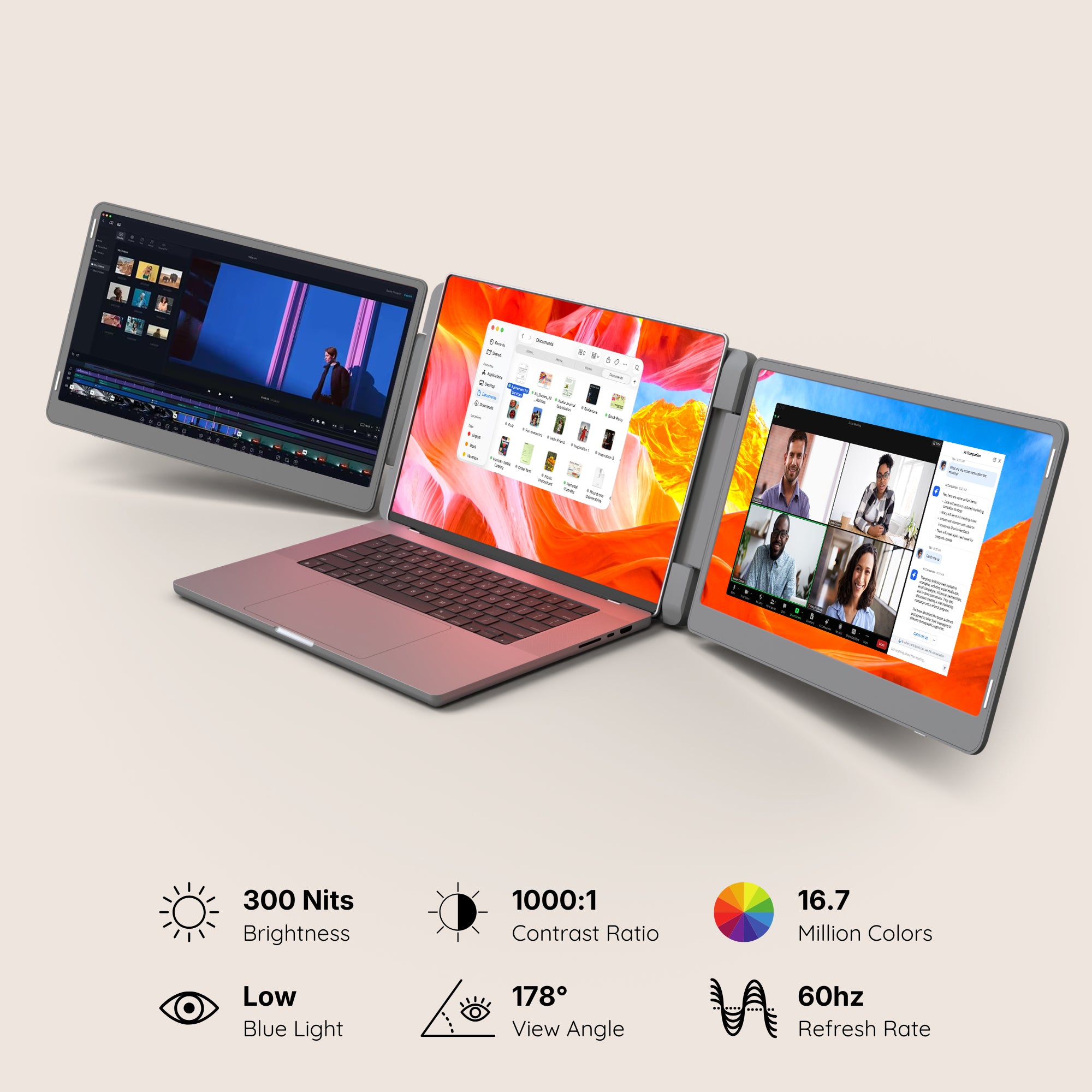
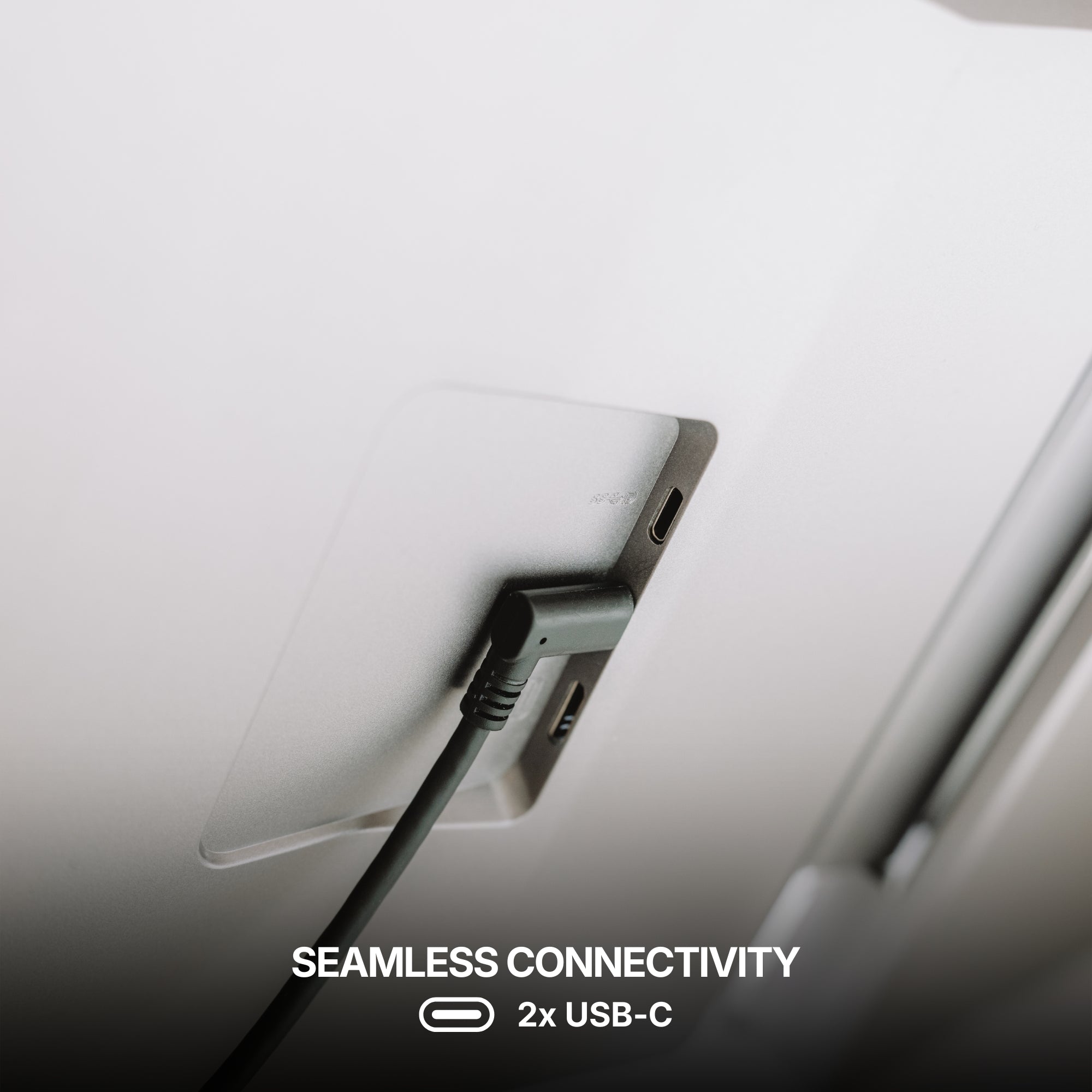
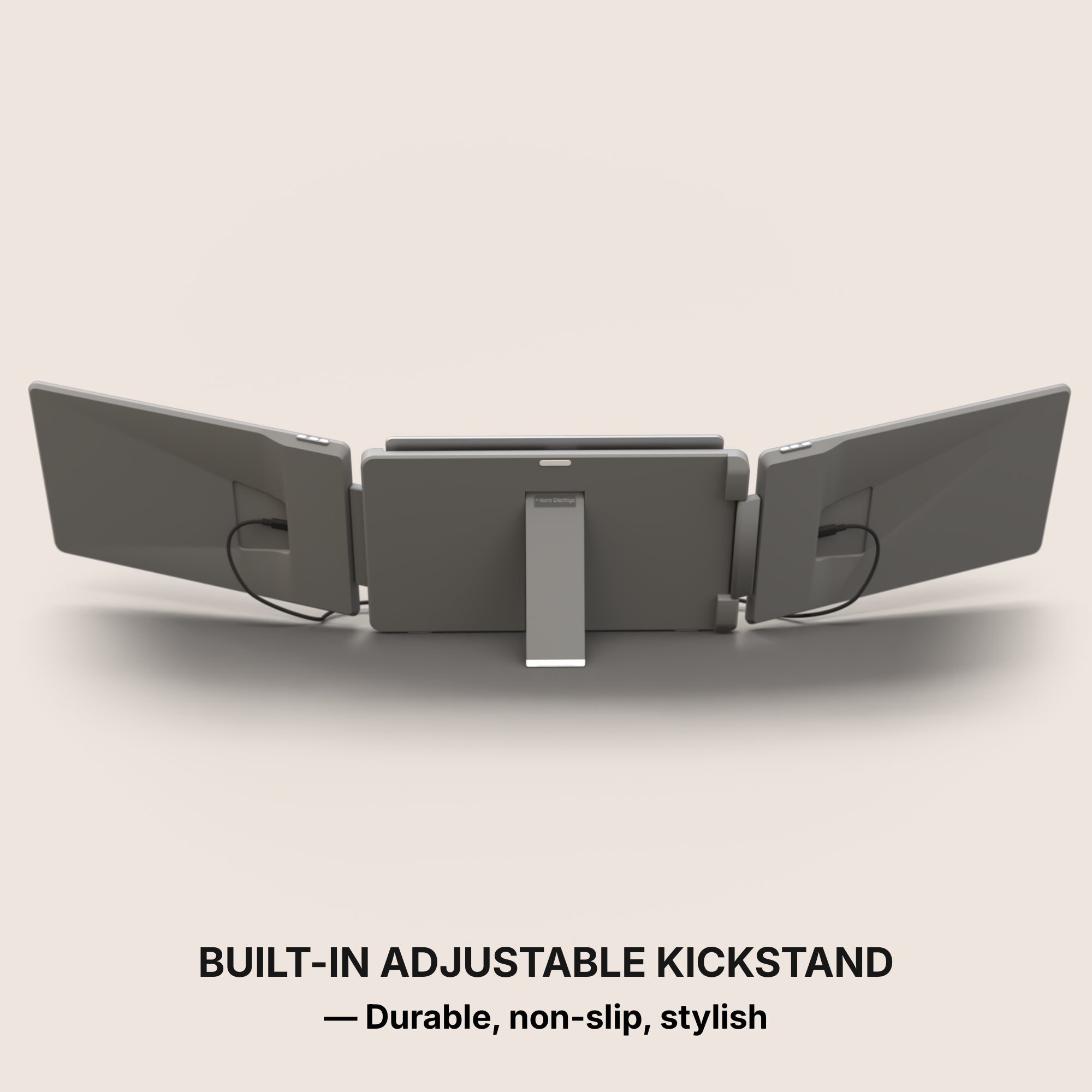
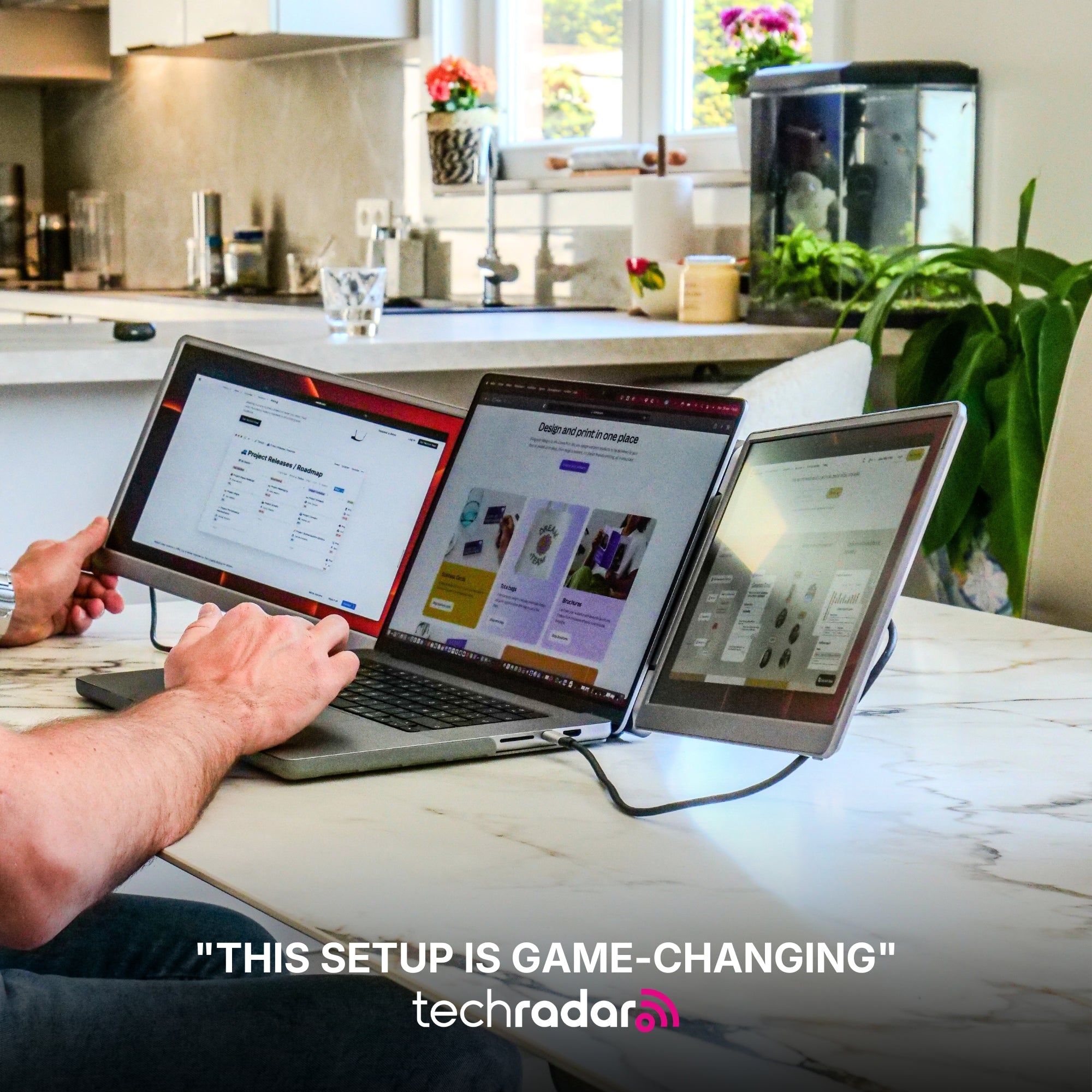
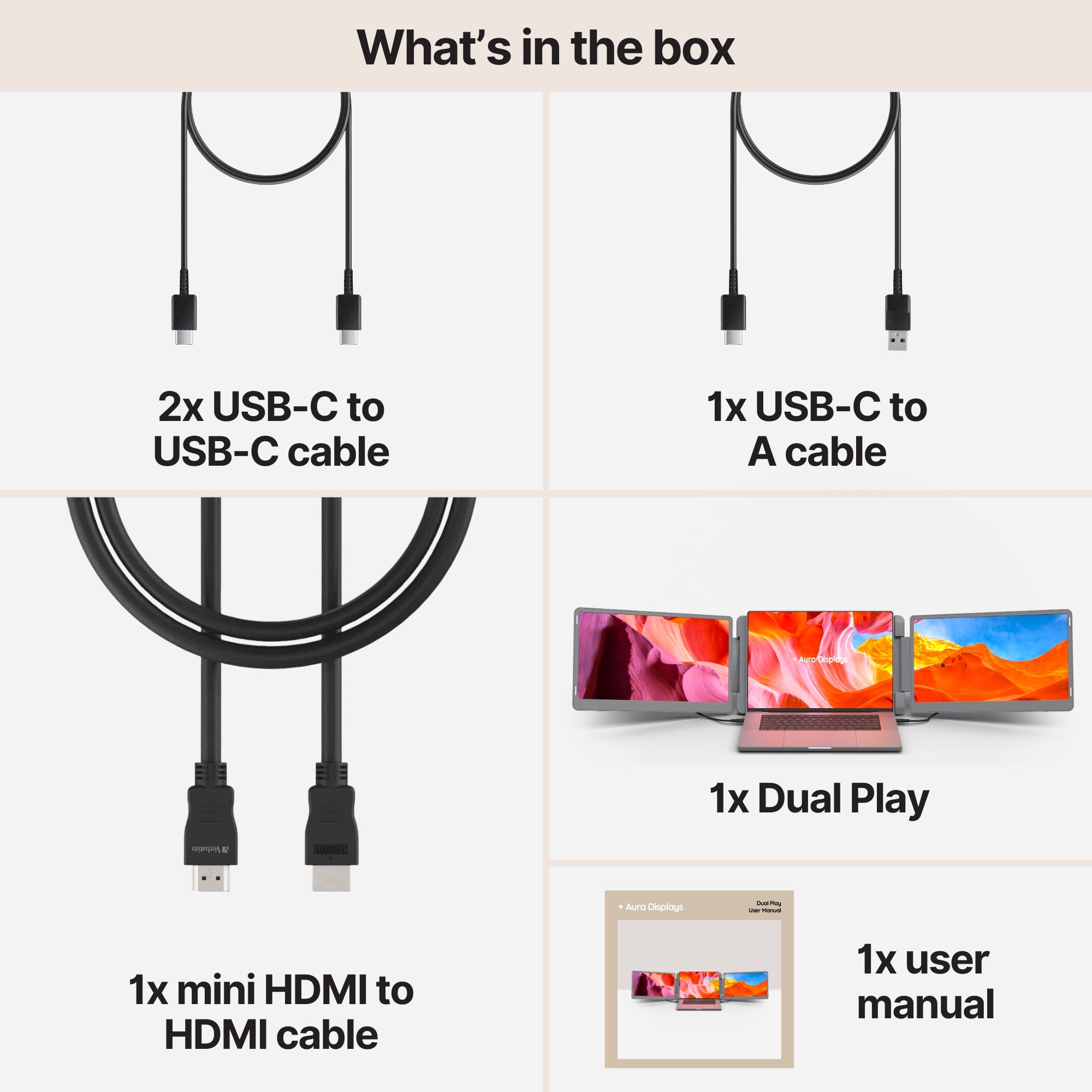
For most people setting up a desk this autumn, the Dual Play (Gen 3), from $369, is the one we would point at. Two panels, no software, the widest compatibility list in the range, 300 nits, and configurations up to 2560 x 1440 QHD on the 15.6-inch. It carries 4x USB-C and 2x mini HDMI, so it plugs into the awkward things too. It is rated 4.75 out of 5 across 593 reviews.
If one extra panel is genuinely all you need, the Single Play (Gen 2) at $289 does that job with the same plug-and-play behaviour and the same compatibility list, and it is the lighter thing to carry. Buying the dual because it is "only $80 more" is how people end up carrying a panel they never open.
And if your machine can install software, has admin rights, and you want three panels off one port — then the software camp is the right camp, and we would rather you knew why you were choosing it.













Share: